Computer Applications Cheatsheet
Cheatsheet Content
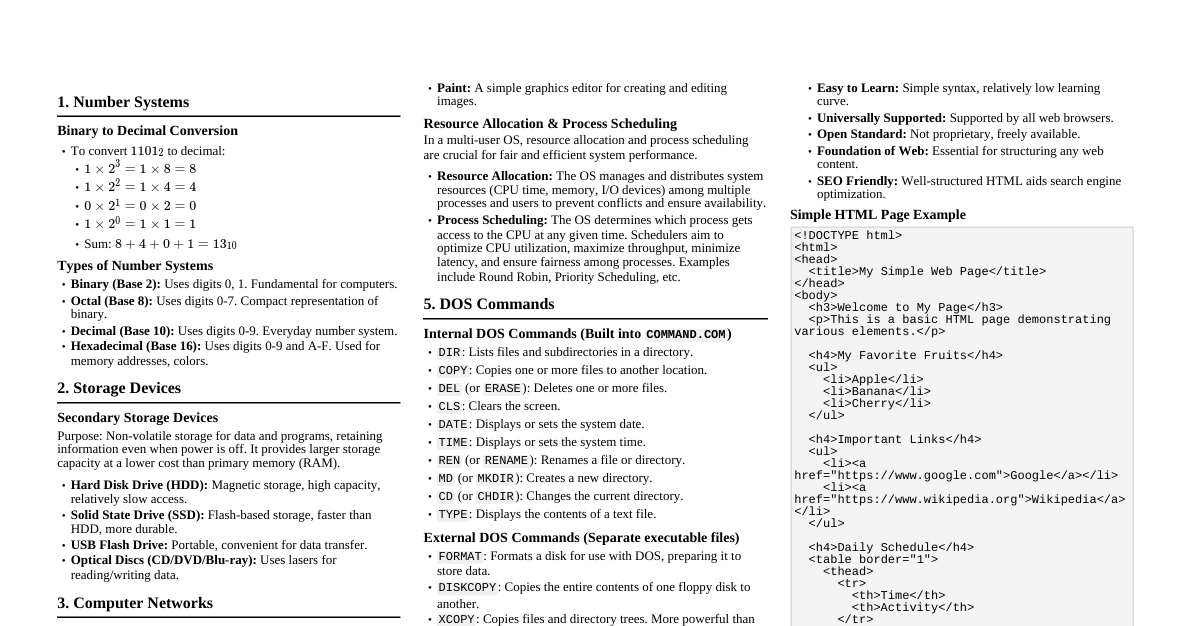
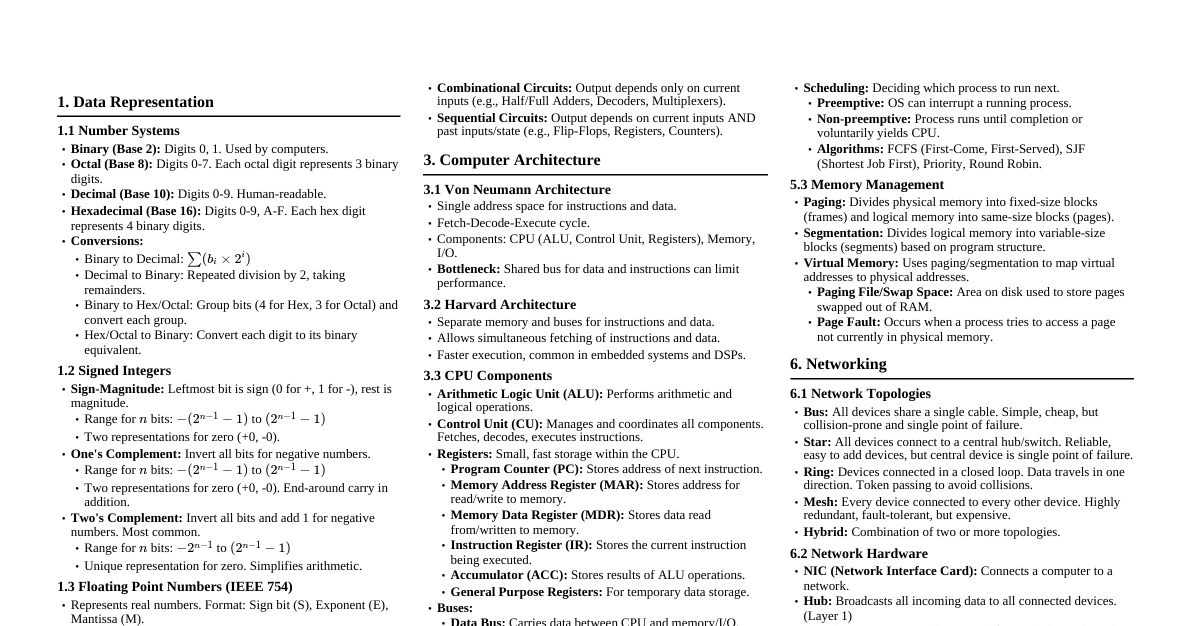
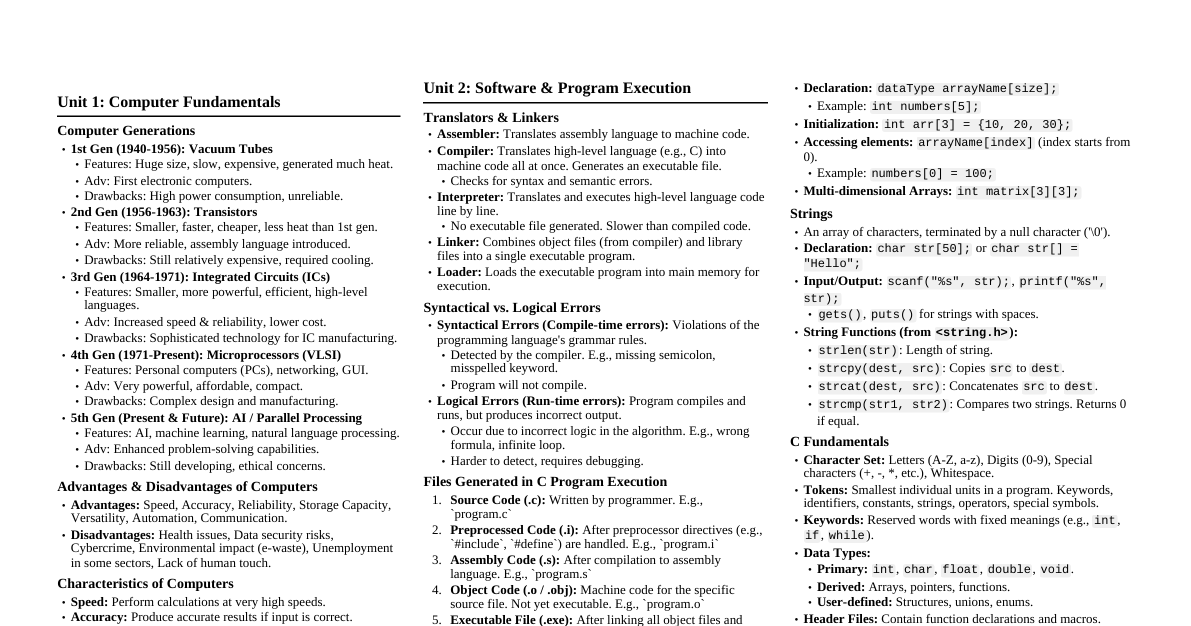
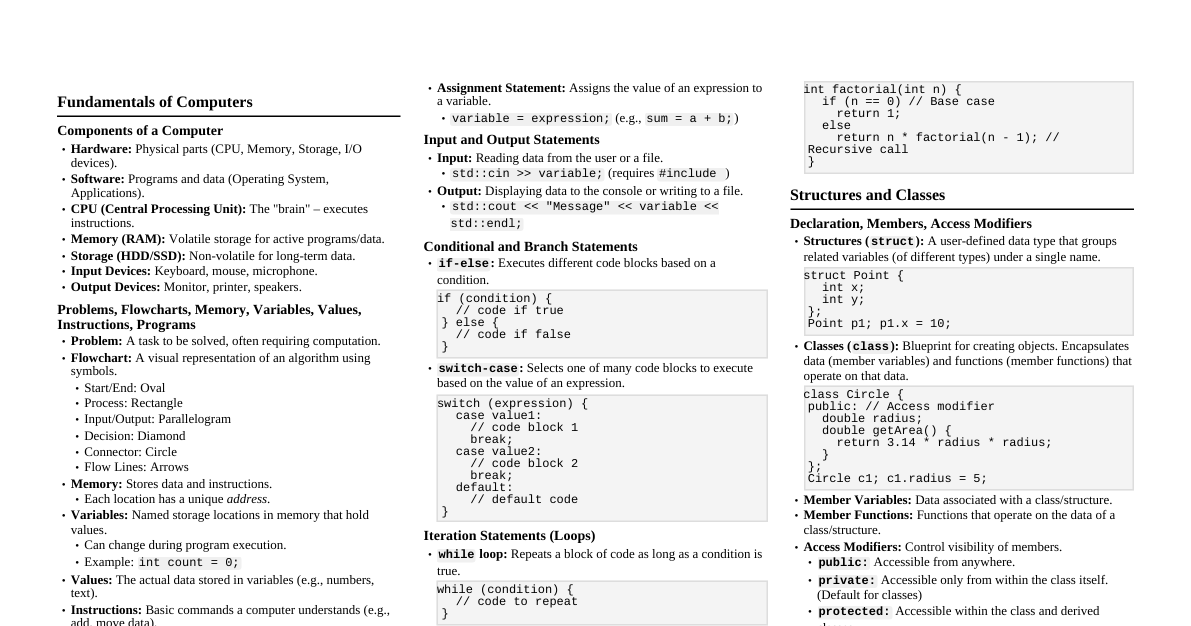
1. Fundamentals of Computers 1.1. Data and Information Data: Raw, unorganized facts (numbers, text, images, sound). Information: Processed, organized, and structured data that is meaningful and useful. Feature Data Information Nature Raw facts, figures Processed, organized data Meaning No specific meaning by itself Meaningful, useful for decision-making Form Unstructured Structured 1.2. Data Processing Cycle The sequence of operations performed on data to convert it into information. Input: Collecting raw data and feeding it into the computer. Processing: Manipulating and organizing the data (calculations, sorting, filtering). Output: Presenting the processed data (information) to the user. Storage: Saving data and information for future use. 1.3. Characteristics of Computers Speed: Perform complex calculations and tasks very quickly. Accuracy: High degree of correctness, minimal errors if input is correct. Diligence: Can work continuously without fatigue or loss of concentration. Versatility: Capable of performing a wide range of tasks. Storage Capacity: Ability to store vast amounts of data and information. Automation: Can perform tasks automatically once programmed. No IQ: Cannot think or make decisions on their own; rely on human instructions. 1.4. Number Systems Methods for representing numerical values in computers. System Base Digits/Symbols Example Binary 2 $0, 1$ $(1011)_2$ Octal 8 $0-7$ $(273)_8$ Decimal 10 $0-9$ $(45)_{10}$ Hexadecimal 16 $0-9, A-F$ $(2AF)_{16}$ Number Conversions (Example: Decimal to Binary) Divide the decimal number by 2 repeatedly, noting the remainders, until the quotient is 0. Read remainders from bottom up. Example: $(13)_{10}$ to Binary $13 \div 2 = 6$ R $1$ $6 \div 2 = 3$ R $0$ $3 \div 2 = 1$ R $1$ $1 \div 2 = 0$ R $1$ Result: $(1101)_2$ 1.5. Data Representation (Internal) How data is stored and processed within a computer. Numeric Data: Binary: All data internally converted to binary. Signed Numbers: Sign-Magnitude: MSB for sign ($0$=positive, $1$=negative), rest for magnitude. 1's Complement: Flip all bits for negative numbers. 2's Complement: 1's complement + 1 (most common for integer arithmetic). Alphanumeric Data (Characters): ASCII (American Standard Code for Information Interchange): 7-bit (128 chars) or 8-bit (256 chars). EBCDIC (Extended Binary Coded Decimal Interchange Code): 8-bit, used in IBM mainframes. Unicode: Universal character encoding standard, supports most world languages. (e.g., UTF-8, UTF-16). Multimedia Data: Images: Represented as pixels (picture elements), each with color depth (bits per pixel). Formats: JPEG, PNG, GIF. Audio: Sampled waveforms, converted to digital signals. Formats: MP3, WAV. Video: Sequence of images (frames) with accompanying audio. Formats: MP4, AVI. 2. Components of a Computer System 2.1. Hardware Physical, tangible components of a computer system. CPU (Central Processing Unit): The "brain" of the computer. Memory: Stores data and instructions. Input Devices: For entering data. Output Devices: For displaying results. Storage Devices: For permanent data storage. 2.2. CPU (Processor) Executes instructions, performs calculations, and manages system flow. Components of CPU: ALU (Arithmetic Logic Unit): Performs arithmetic (+, -, *, /) and logical (AND, OR, NOT) operations. CU (Control Unit): Directs and coordinates all operations within the CPU and other components. Fetches, decodes, and executes instructions. Registers: Small, high-speed storage locations within the CPU for temporary data during processing. Program Counter (PC): Stores the address of the next instruction to be fetched. Instruction Register (IR): Holds the current instruction being executed. Accumulator: Stores the results of ALU operations. Memory Address Register (MAR): Holds memory addresses for data/instruction access. Memory Buffer Register (MBR): Temporarily stores data read from or written to memory. 2.3. Memory Stores data and instructions for the CPU. Primary Memory (Main Memory): RAM (Random Access Memory): Volatile: Data lost when power is off. Read/Write: Can be read from and written to. Used for active programs and data. ROM (Read Only Memory): Non-volatile: Data retained when power is off. Read-only: Contains firmware (e.g., BIOS) for booting up the computer. Cache Memory: Very fast, small memory between CPU and RAM. Stores frequently used data/instructions for quicker access by CPU. Speeds up processing. Secondary Memory (Auxiliary Storage): Non-volatile: Permanent storage. Larger capacity, slower access than primary memory. Examples: Hard Disk Drives (HDD), Solid State Drives (SSD), USB Flash Drives, Optical Discs (CD/DVD/Blu-ray). 2.4. Input Devices Allow users to enter data and commands into the computer. Keyboard: Text and commands. Mouse/Touchpad: Pointing and clicking. Scanner: Converts physical documents/images into digital format. Microphone: Audio input. Webcam: Video input. Touchscreen: Direct interaction with display. Barcode Reader: Reads product codes. Biometric Devices: Fingerprint, iris scanners for authentication. 2.5. Output Devices Display or present processed information from the computer. Monitor: Visual display (Soft Copy). Types: LCD, LED, OLED. Printer: Produces physical copies (Hard Copy). Impact: Dot-matrix (strikes ribbon). Non-Impact: Inkjet (sprays ink), Laser (uses toner and heat). Speakers/Headphones: Audio output. Projector: Displays output on a large screen. Plotter: Produces high-quality graphics and large-format prints. 2.6. Ports and Connectors Interfaces for connecting external devices (peripherals). USB (Universal Serial Bus): Common for many peripherals (keyboard, mouse, flash drives, printers). HDMI (High-Definition Multimedia Interface): For high-quality audio and video output to monitors/TVs. VGA (Video Graphics Array): Older standard for connecting monitors. Ethernet (RJ-45): For wired network connections. Audio Jacks: For speakers, headphones, microphones. Thunderbolt/USB-C: Versatile, high-speed ports for data, video, and power. 2.7. E-Waste Management Disposal of electronic products that are no longer usable. Concerns: Contains toxic materials (lead, mercury, cadmium) harmful to environment and human health. Solutions: Recycling: Recovering valuable materials. Reuse: Donating or reselling functional electronics. Proper Disposal: Using certified e-waste facilities. Green Computing: Environmentally responsible use of computers and resources. 3. Software 3.1. Definition A set of instructions or programs that tells the hardware what to do. Intangible. Categories: System Software: Manages and controls computer hardware and provides a platform for application software. Application Software: Designed for specific tasks or user needs. 3.2. System Software Operating System (OS): Manages computer hardware and software resources, provides common services for programs. Examples: Windows, macOS, Linux, Android, iOS. Functions: Process management, memory management, file management, device management, user interface. Device Drivers: Software that allows the OS to communicate with specific hardware devices. Utility Software: Helps maintain and optimize computer performance. Examples: Antivirus, Disk Defragmenter, Compression tools, Backup utilities. Language Processors: Translate programming language code into machine code. Compiler: Translates entire program at once (e.g., C++, Java). Interpreter: Translates and executes line by line (e.g., Python, JavaScript). Assembler: Translates assembly language into machine code. 3.3. Application Software General-Purpose Software: Widely used for common tasks. Word Processors (e.g., MS Word, Google Docs) Spreadsheets (e.g., MS Excel, Google Sheets) Presentation Software (e.g., MS PowerPoint, Google Slides) Database Management Systems (e.g., MS Access, MySQL) Web Browsers (e.g., Chrome, Firefox) Graphics Software (e.g., Adobe Photoshop, GIMP) Specific-Purpose Software: Designed for specialized tasks or industries. Accounting Software Payroll Systems Inventory Management Systems Reservation Systems CAD/CAM Software 3.4. Software Licensing Models Proprietary Software: Owned by an individual or company; user must purchase a license to use. (e.g., Microsoft Office). Freeware: Copyrighted software available for use at no cost, but source code is usually not available. (e.g., Adobe Reader). Shareware: Distributed free of charge on a trial basis; requires payment for continued use or full functionality. Free and Open Source Software (FOSS): Users have the freedom to run, study, modify, and distribute the software. Source code is openly available. (e.g., Linux, GIMP, Apache). 4. Programming and Problem Solving 4.1. Problem-Solving Approaches Top-Down Design: Breaking a complex problem into smaller, more manageable sub-problems, then solving each sub-problem. Bottom-Up Design: Solving the smallest, most fundamental parts of a problem first, then integrating them to build the complete solution. 4.2. Program Development Life Cycle (PDLC) Problem Definition: Clearly understand the problem, inputs, outputs, and constraints. Algorithm Development: Design a step-by-step solution. Coding: Translate the algorithm into a specific programming language. Testing and Debugging: Find and fix errors (bugs) in the code. Syntax Errors: Grammatical mistakes in the code. Logical Errors: Program runs, but produces incorrect results. Run-time Errors: Errors that occur during program execution (e.g., division by zero). Documentation: Explain how the program works and how to use it. Maintenance: Updating and improving the program over time. 4.3. Algorithms A finite set of well-defined, unambiguous instructions to solve a problem. Characteristics: Unambiguous, Input, Output, Finiteness, Effectiveness. Representation: Natural language, Pseudocode, Flowcharts. 4.4. Flowcharts A graphical representation of an algorithm, showing the steps as boxes of various kinds, and their order by connecting them with arrows. Symbol Name Purpose Terminal Start/End of program Input/Output Data input or output Process Any processing operation Decision Conditional operation (Yes/No) Flow Line Indicates direction of flow 5. Introduction to C++ 5.1. C++ Character Set The set of valid characters that C++ can recognize. Letters: A-Z, a-z Digits: 0-9 Special Characters: ` ~ ! @ # % ^ & * ( ) _ - + = { } [ ] \ | ; : ' " , . ? /` Whitespace Characters: Space, tab, newline, carriage return. 5.2. C++ Tokens (Lexical Units) The smallest individual units in a program. Keywords: Reserved words with fixed meanings (e.g., int , float , if , else , while , for , return , class ). Identifiers: Names given to variables, functions, classes, etc. Rules: Start with a letter or underscore, followed by letters, digits, or underscores. Case-sensitive. Cannot be a keyword. Literals (Constants): Fixed values that do not change during program execution. Integer Literals: Whole numbers (e.g., $10, -500, 0$). Floating-point Literals: Real numbers (e.g., $3.14, -0.001, 2.5E-3$). Character Literals: Single character in single quotes (e.g., 'A' , '7' , '$' ). String Literals: Sequence of characters in double quotes (e.g., "Hello World" , "C++" ). Boolean Literals: true , false . Operators: Symbols that perform operations on operands (e.g., $+, -, *, /, \%, ==, , \&\&, ||, !$). Punctuators (Separators): Symbols used to organize the program structure (e.g., $;, ( ), \{ \}, [ ], :, \#$). Escape Sequences: Special character literals used to represent non-printable characters or to modify output formatting. \n : Newline \t : Horizontal tab \b : Backspace \\ : Backslash \' : Single quote \" : Double quote 5.3. Data Types and Variables Data types: Used to identify the nature and type of data stored in a variable. Fundamental Data Types: Data type Type of value Memory (bytes) Example Category void null or empty data 0 char character values 1 'A' , '\n' Integral datatypes int integer values 4 $84, -4$ float real values 4 $5.6, -89.5$ Floating-point datatypes double real values (more precision than float) 8 Variables: A named storage location in memory that holds a value. int Num = 18; i. Variable name: Num ii. Memory address (L-value): The memory address where 18 is stored. iii. Content (R-value): The value stored in the variable, which is $18$. Variable Initialization: At declaration: Providing an initial value when declaring a variable. int n = 5; int n(5); During execution (dynamic initialization): Assigning a value during program execution. float sum = a + b; Type Modifiers: Used to change the range and size of fundamental data types. long , short , signed , unsigned . Type Conversion: Converting the data type of an operand to another. Implicit Conversion (Type Promotion): Done automatically by the compiler, typically from lower to higher data type. float result = 5 / 2.0; // 5 (int) is promoted to 5.0 (float) // result will be 2.5 Explicit Conversion (Type Casting): Done by the programmer using a cast operator. int x = 5; int y = 2; float result = (float)x / y; // x is explicitly cast to float // result will be 2.5 int int_result = 5 / (int)2.0; // 2.0 (float) is cast to 2 (int) // int_result will be 2 5.4. Operators Symbols that indicate an operation to be performed on operands. In the expression $a + b$, $+$ is the operator, and $a$ and $b$ are the operands. Classification of Operators: 1. Based on number of operands: Category No. of Operands Example Unary 1 Unary $+, -, ++, --$ Binary 2 $+, \&\&, Ternary 3 $?:$ (conditional operator) 2. Based on nature of operation: (a) Arithmetic Operators: Used for mathematical calculations. Operator Description Example ($x=7, y=3$) Result $+$ Addition $x + y$ $10$ $-$ Subtraction $x - y$ $4$ $*$ Multiplication $x * y$ $21$ $/$ Division $x / y$ $2$ (integer division) $\%$ Modulus (remainder) $x \% y$ $1$ Arithmetic Assignment Operators (Shorthands): Combine arithmetic and assignment operators. Operator Example Equivalent to $+= $ a += 5 a = a + 5 $-= $ a -= 5 a = a - 5 $*= $ a *= 5 a = a * 5 $/= $ a /= 5 a = a / 5 $\%= $ a %= 5 a = a % 5 Increment ($++$) and Decrement ($--$) Operators: Used to increase/decrease the value of a variable by $1$. Pre-increment/decrement: Changes value, then uses it. (e.g., ++a , --a ) Post-increment/decrement: Uses value, then changes it. (e.g., a++ , a-- ) int m = 5; int n = m++; // n becomes 5, m becomes 6 // (Post-increment: n -> 5, m -> 6) int p = 5; int q = ++p; // p becomes 6, q becomes 6 // (Pre-increment: p -> 6, q -> 6) (b) Relational Operators: Used for comparing numeric data, resulting in true (1) or false (0). Operator Description Example ($x=7, y=3$) Result $ Less than $x $0$ (false) $>$ Greater than $x > y$ $1$ (true) $ Less than or equal to $x $0$ (false) $>= $ Greater than or equal to $x >= y$ $1$ (true) $== $ Equal to $x == y$ $0$ (false) $!= $ Not equal to $x != y$ $1$ (true) (c) Logical Operators: Used to combine logical values (true/false), resulting in true or false . E1 E2 E1 && E2 (AND) E1 || E2 (OR) !E1 (NOT) 0 0 0 0 1 0 1 0 1 1 1 0 0 1 0 1 1 1 1 0 Example: (2 > 5) && (4 results in 0 (false) Example: (2 > 5) || (4 results in 1 (true) Example: !(2 > 5) results in 1 (true) (d) Assignment Operator ($=$): Used to store a value in a variable. int a = 5; Difference between $=$ and $==$ operators: $=$ (Assignment operator) $==$ (Relational operator) Assigns value to a variable Compares two values for equality 5.5. Expressions and Statements Expressions: Combinations of operators and operands that evaluate to a single value. Arithmetic expressions: Contain arithmetic operators (e.g., m + n * y ). Integer expressions: All operands are integers. Floating-point (Real) expressions: Contain at least one floating-point operand. Constant expressions: All operands are constants (e.g., 5 + 7 / 3 ). Relational expressions: Contain relational operators (e.g., x > y ). Logical expressions: Contain logical operators (e.g., a d ). Statements: The smallest executable unit of a program. C++ statements usually end with a semicolon ( ; ). Declaration statement: Specifies the data type of a variable. float avg; Assignment statement: Stores a value to a variable. a = 15; Input statement: Specifies an input operation using cin and the extraction operator ( >> ). cin >> score; Output statement: Specifies an output operation using cout and the insertion operator ( ). cout Cascading of I/O operators: Multiple input/output operations in a single statement. cin >> x >> y >> z; cout 6. C++ Program Structure and Control Statements 6.1. Basic Structure of a C++ Program #include <iostream> // Line 1: Preprocessor directive using namespace std; // Line 2: Namespace statement int main() // Line 3: Function header { // statements; cout Line 1: Preprocessor directive (`#include`): Instructs the compiler to include header files (e.g., <iostream> for input/output). Line 2: Namespace statement (`using namespace std;`): Tells the compiler to use the standard namespace ( std ) where common objects like cin and cout are defined. Line 3: Function header (`int main()`): The essential function where every C++ program execution begins and ends. Comments: Used to explain code. Single-line comment: Starts with // . Multi-line comment: Enclosed within /* ... */ . Guidelines for coding: Use suitable naming conventions, clear expressions, comments, and proper indentation. 6.2. Control Statements Statements used to alter the normal sequential flow of program execution. 1. Decision (Selection) Statements: Statements are selected for execution based on a condition ( true or false ). `if` statement: Executes a block of code if the condition is true. if (test expression) { // Statement block; } Example: if (mark >= 18) { cout `if...else` statement: Executes one block if the condition is true, another if false. if (test expression) { // Statement block 1; } else { // Statement block 2; } Example: if (mark >= 18) { cout `if...else if...else` ladder: Multiple conditions are checked sequentially. if (test expression 1) { // Statement block 1; } else if (test expression 2) { // Statement block 2; } else if (test expression 3) { // Statement block 3; } else { // Default statement block; } Example: if (mark >= 80) { cout = 60) { cout = 40) { cout `switch` statement: Allows multi-way branching based on the value of a variable or expression. switch (variable/expression) { case constant_1: // statement 1; break; case constant_2: // statement 2; break; // ... default: // default statement; } Example: switch (n) { case 1: cout Comparison between `switch` and `if-else if` ladder: Feature `switch` `if-else if` ladder Branching Permits multiple branching Permits multiple branching Condition Type Checks for equality with integer/character constants Checks any relational or logical condition Floating-point Cannot compare against floating numbers Can compare against floating numbers Default/Else Uses `default` block if no match; `break` to exit Uses `else` block if no condition is true Conversion All `switch` statements can be converted to `if-else if`. Not all `if-else if` can be converted to `switch`. 2. Iteration (Looping) Statements: Allow repeated execution of a set of statements. A loop has the following components: Initialization: Gives a starting value to the loop variable. Condition (Test Expression): Determines if the loop should continue. Update: Changes the value of the loop variable. Body: The set of statements to be executed repeatedly. `for` loop: Best for a fixed number of iterations. for (initialization; test expression; update expression) { // Body of the loop; } Example: Display numbers from 1 to 10 for (int i = 1; i `while` loop: Best when the number of iterations is not known beforehand, and the condition is checked before each iteration. initialization; while (test expression) { // Body of the loop; update expression; } Example: Display numbers from 1 to 10 int i = 1; while (i `do-while` loop: Similar to `while`, but guarantees at least one execution of the loop body because the condition is checked after the iteration. initialization; do { // Body of the loop; update expression; } while (test expression); Example: Display numbers from 1 to 10 int i = 1; do { cout Entry Controlled vs. Exit Controlled Loops: Entry Controlled Loops (`for`, `while`): Condition is checked before the loop body executes. Loop body runs only if the condition is true. Exit Controlled Loop (`do-while`): Condition is checked after the loop body executes. Loop body runs at least once, even if the condition is initially false. 7. Computer Networks 7.1. Basics of Networking A group of computers and other devices connected electronically through a communication medium. Need for Network: Resource Sharing: Share hardware (printers) and software resources. Price-Performance Ratio: Reduces cost by sharing licensed software. Communication: Enables users to communicate (email, chat, video conferencing). Reliability: Data can be backed up on multiple computers. Scalability: Computing capacity can be easily increased or decreased. Some Key Terms: Bandwidth: Amount of data that can be sent over a specific connection in a given time. Noise: Unwanted electrical or electromagnetic energy that degrades data signals. Node: Any device directly connected to a network. Data Communication System: Exchange of digital data between any two devices through a transmission medium. 5 Basic Elements: Message: The information to be communicated. Sender: Device sending the message. Receiver: Device receiving the message. Medium: Physical path through which the message travels. Protocol: Rules governing data transmission. 7.2. Communication Mediums Channels for data transmission. 1. Guided Medium (Wired): a) Twisted Pair Cable (Ethernet Cable): Most widely used. Types: UTP (Unshielded Twisted Pair) and STP (Shielded Twisted Pair). Characteristics (UTP): Low cost, thin, flexible, easy installation, up to 100m. Characteristics (STP): Better immunity against noise, expensive, difficult to install. Uses RJ connector. b) Coaxial Cable: Carries data over long distances (185-500m). High bandwidth, less noise. Thicker, less flexible, difficult to install. c) Optical Fibre Cable: Data travels as light, very high bandwidth. Used for long distances, most expensive, difficult installation/maintenance. 2. Unguided Medium (Wireless): Uses electromagnetic waves for wireless communication. a) Radio Waves: Frequency: 3KHz to 3GHz. Used for short and long-distance communication. Transmitted in all directions, can penetrate objects. Inexpensive, less secure, can be affected by interference. b) Microwaves: Frequency: 300MHz to 300GHz. Travels in straight line, cannot penetrate solid objects. Inexpensive than wired media. c) Infrared Waves: Frequency: 300GHz to 400THz. Used for short-range communication, line-of-sight. Cannot cross solid objects, performance weakens with distance. 7.3. Wireless Communication Technologies a) Bluetooth: Frequency: 2.402GHz to 2.480GHz. Short-distance communication (PAN). Used in cell phones, laptops, etc. Cannot connect to multiple devices simultaneously. Slow data transfer. b) WiFi (Wireless Fidelity): Frequency: 2.4GHz to 5GHz. Data speed up to 54Mbps. Connects many devices simultaneously, range up to 375ft. c) WiMAX (Worldwide Interoperability for Microwave Access): Frequency: 2GHz to 11GHz. High-speed wireless internet over very long distances. Hundreds of users, up to 70Mbps. Affected by weather, high power consumption. d) Satellite Link: Uses geostationary satellites with transponders. Uplink: Earth to satellite (10-30GHz). Downlink: Satellite to earth (1.5-20GHz). Covers large areas. e) Li-Fi (Light Fidelity): Fast optical version of Wi-Fi. Data rate 100Mbps. Used in aircrafts and hospitals. 7.4. Network Topologies The physical arrangement of nodes in a network. Bus Topology: All nodes connected to a single main cable (bus). Terminators at each end to absorb signals. Characteristics: Easy to install, less cable, cost-effective. Failure of cable/terminator breaks entire network. Difficult fault diagnosis. Only one node transmits at a time. Star Topology: Each node directly connected to a central hub/switch. Signal sent to hub/switch, then broadcasted (hub) or sent to intended node (switch). Characteristics: More efficient, easy to install, easy to diagnose faults, easy to expand. Hub/switch failure leads to entire network failure. Requires more cable. Ring Topology: Nodes connected in a circular fashion. Data travels in one direction. Each node regenerates the signal. Characteristics: No signal amplification needed. Less cable. If one node fails, the entire network fails. Difficult to add nodes. Mesh Topology: Every node connected to every other node. Multiple paths between nodes. Characteristics: Network won't fail if one path fails. Expensive due to extra cables. Complex to manage. 7.5. Types of Networks (Based on Area) PAN (Personal Area Network): Devices in close proximity (e.g., computer, mobile, printer). Radius of a few meters. LAN (Local Area Network): Devices in a room, building, or campus. Few meters to a few kilometers. MAN (Metropolitan Area Network): Devices within a city. Few kilometers to a few hundred kilometers radius. Usually formed by interconnecting several LANs. WAN (Wide Area Network): Devices crossing city, country, or continent limits. Hundreds of kilometers in radius. Summary of Network Types: Parameter PAN LAN MAN WAN Area Covered Small (up to 10m) Few meters to few Km City (up to 100 Km) Country, continent, globe Transmission speed High speed High speed Moderate speed Low speed Networking cost Negligible Inexpensive Moderately expensive Expensive 7.6. Logical Classification of Networks Peer-to-Peer: No dedicated servers. Any computer can act as client or server. Ideal for small networks. Client-Server: Consists of high-end computers (servers) and client machines. File server: Stores and manages files. Web server: Responds to requests for webpages. Print server: Manages print jobs. Database server: Manages database access. 7.7. Network Protocols A set of rules for devices to exchange data in a network. TCP/IP (Transmission Control Protocol/Internet Protocol): Used to interconnect network devices on local networks and the internet. TCP: Breaks data into smaller packets. IP: Responsible for delivering packets to the correct destination. HTTP, FTP, DNS are sub-protocols of TCP/IP. HTTP (Hypertext Transfer Protocol): Standard protocol for transferring requests from client to server and receiving responses. Stateless protocol. FTP (File Transfer Protocol): Easiest way to transfer files between computers over the internet. Used to upload and download files. DNS (Domain Name System): Translates human-readable domain names (e.g., google.com) into IP addresses. Maintains a database of domain names and IP addresses. 7.8. Identification of Computers over a Network MAC Address (Media Access Control): A universally unique 12-digit hexadecimal number assigned to each NIC (Network Interface Card) by its manufacturer. Format: MM:MM:MM:SS:SS:SS or MM-MM-MM-SS-SS-SS . First half (MM:MM:MM) is the manufacturer ID. Second half (SS:SS:SS) is the serial number assigned by the manufacturer. IP Address (Internet Protocol Address): A unique 4-part numeric address (32 bits) assigned to each node on a network. Each part is a number from 0 to 255. Example: 192.168.1.1 URL (Uniform Resource Locator): A formatted string used to identify a network resource on the internet. Consists of: Network Protocol: (e.g., http:// ) Domain Name: (e.g., www.example.com ) File Name: (e.g., /index.html ) Domain Name Table: Generic Names Domain Country Specific Domain .com Commercial Business .in (India) .edu Educational Institutions .au (Australia) .gov Government agencies .ca (Canada) .mil Military .ch (China) .net Network organizations .jp (Japan) .org Non-profit organizations .us (USA) 7.9. Data Communication Devices Interfaces between computers and communication channels. Network Interface Card (NIC): Breaks up data into manageable units. Translates protocols. Some have wireless connection, data transfer rate up to 1Gbps. Hub: Connects devices in the same network. Transmits packets to all connected computers. Increases network traffic, reduces bandwidth. Switch: Connects several computers to form a network. Intelligent device: transmits data only to the destination. Stores addresses of connected devices. Repeater: Regenerates signals through a communication medium. Used to extend network reach. Bridge: Segments a network, interconnects segments. Reduces network traffic. Operates at Data Link Layer. Router: Interconnects two networks of the same type using the same protocol. Finds optimal path for data packets, reduces traffic. Operates at Network Layer. Gateway: Interconnects two different networks having different protocols. Translates one protocol to another. Operates at all layers. Modem (Modulator-Demodulator): Used for communication over telephone lines. Converts digital signals from computer to analog signals for telephone lines, and vice versa. 8. Internet 8.1. History of Internet Developed by the US Department of Defense as ARPANET (Advanced Research Project Agency Network). ARPANET used TCP/IP protocol, considered the first wide area connection. Vincent Gray Cerf is considered the "father of the Internet". Tim Berners-Lee proposed the idea of the World Wide Web (WWW) and invented HTTP and HTML. Internet is an interconnected system of computer networks. Intranet: Private computer network similar to the internet. Extranet: Intranet made accessible to some external users. 8.2. Connecting to the Internet Hardware and software requirements: Computer with Network Interface Card (NIC). Modem. Telephone connection (for dial-up/DSL) or other broadband infrastructure. Internet account from an Internet Service Provider (ISP). Browser software. Types of Connectivity: Dial-up Connectivity: Uses conventional telephone line and dial-up modem. Slow speed (up to 56kbps). Less costly, requires exclusive use of telephone line. Wired Broadband Connectivity ("Always on"): Does not require dialing. Uses a broadband modem, allows simultaneous phone use. Popular technologies: ISDN, Cable Internet, DSL, Leased Lines, Fiber to the Home (FTTH). Cable Internet: Uses coaxial cables, speed 1-10Mbps. DSL (Digital Subscriber Line): Uses standard telephone lines, ADSL is common, speed 256Kbps-24Mbps. Leased Line: Dedicated lines, speed 2Mbps-100Mbps. FTTH: Uses optical fibers, high-speed connectivity. Wireless Broadband Connectivity: Mobile Broadband: Uses mobile phone network, modem built into devices. WiMAX: High-speed wireless internet over long distances. Satellite Broadband: Internet via satellite, speed up to 1Gbps, most expensive. 8.3. Services on Internet 1. World Wide Web (WWW): A huge client-server system of interconnected documents and other web resources. a) Browser: Software to retrieve and present information, navigate web pages (e.g., Chrome, Firefox). Web browsing: Traversing web pages. How a browser displays a webpage: Browser sends URL to ISP's DNS server to get IP address. ISP's DNS server replies with IP address. Browser makes TCP connection to web server at IP address. Sends GET request for the webpage. Web server returns the webpage. TCP connection is released. Browser processes and displays the webpage. 2. Search Engines: Websites/programs to find information on the WWW using keywords (e.g., Google, Bing, Yahoo). 3. Email (Electronic Mail): Method of exchanging digital messages. Sections: To, Cc (Carbon Copy), Bcc (Blind Carbon Copy), Subject, Content. Advantages: Speed, ease of use, attachments, environment friendly, cost-effective. Disadvantages: Viruses, junk mails. 4. Social Media: Mobile and web-based technologies for individuals/communities to create, share, discuss, and modify content. Classification: Internet forums: Online discussion websites. Social blogs: Discussion/informational websites (e.g., Blogger, WordPress). Microblogs: Exchange short messages, images, videos (e.g., Twitter). Wikis: Collaborative web pages (e.g., Wikipedia). Social networks: Build web pages, connect with friends (e.g., Facebook, LinkedIn). Content communities: Organize/share content like photos/videos (e.g., YouTube). Advantages: Connects people, event organization, business promotion, social skills. Limitations: Privacy intrusion, addiction, rumors. 8.4. Cyber Security Protection of valuable information from unauthorized access. Threats: 1) Computer Virus: Malicious program that damages computer systems. Attaches to other programs/files. 2) Worm: Stand-alone malware that replicates itself to spread to other computers. 3) Trojan Horse: Appears useful but is harmful; deletes files/software. 4) Spams: Unsolicited emails to promote products/services. 5) Hacking: Trespassing computer networks to manipulate normal behavior. Ethical hacking: Performed by security experts ("white hats"). Computer criminals: Break into secure networks to destroy data ("black hats"). Grey hat hackers: Between white and black hats. 6) Phishing: Attempt to obtain sensitive information (username, password, bank details) by posing as a legitimate entity. Websites often have similar URLs and homepages (spoofing). 7) Denial of Service (DoS) attack: Computer is forced to restart, refusing service to genuine users. 8) Man-in-the-Middle (MITM) attack: Attacker secretly intercepts and modifies electronic messages between sender and receiver. Preventing Network Attacks: 1) Firewall: System (hardware/software) that controls incoming/outgoing network traffic by analyzing data. 2) Antivirus Scanner: Tool to scan and remove viruses, worms, Trojan horses. Stops infected files from running and quarantines them. 3) Cookies: Small text files created by websites to track user details (name, preferences, email). Guidelines for using computers over the Internet: Do not open unknown email attachments. Download files only from reputed sources. Do not use pirated software. Avoid clicking on pop-up advertisements. Ensure firewall is active. Use strong passwords and change them regularly. Update antivirus definitions periodically. Keep regular backups. Be careful about giving personal data online. 9. IT Applications 9.1. e-Governance Government uses Internet and communication technology for delivering services to people. Types of interactions in e-Governance: Government to Government (G2G): Sharing of data/information between government departments or organizations. Government to Citizens (G2C): Provides an interface between government and citizens for public services. Government to Business (G2B): Business people interact with the government using ICT tools. Government to Employee (G2E): Government uses ICT for interaction with its employees. e-Governance Infrastructure: State Data Centre (SDC): Responsible for delivering online services, maintaining central database, and securing data storage. Kerala State Wide Area Network (KSWAN): Acts as a backbone for e-Governance infrastructure, connecting major cities (Thiruvananthapuram, Kochi, Kozhikode) and extending to all 14 districts, linking 152 Block Panchayaths. Common Service Centres (CSC): Front-end delivery point for e-Governance services in rural areas. Helps with utility payments (electricity, telephone, water bills) and online applications. E.g., Akshaya Centres. 9.2. e-Business Sharing business information, maintaining business relationships, and conducting business transactions using information technology. It includes all aspects of running a business such as marketing, obtaining raw materials, or goods. e-Commerce vs. e-Business: e-Commerce: Covers business transactions involving exchange of money (e.g., online shopping). e-Business: A broader term, includes all aspects of running a business online, including e-commerce, marketing, supply chain management, customer education. Electronic Payment System (EPS): A system of financial exchange between buyers and sellers in an online environment. Financial exchange done by credit/debit card, electronic cheque, or digital cash. e-Banking: Automated delivery of banking services directly to customers through electronic channels. Advantages of e-Business: Overcomes geographical limitations. Reduces operational cost. Minimizes travel time and cost. Remains open all the time (24/7). Wider range of choices for products. Challenges to e-Business: Lack of knowledge about e-Business and its possibilities. Rural population may not have access to plastic money, credit/debit cards, or net banking. Risk of losing valuable information (credit card numbers, passwords) if not used with caution. Customers lack the "touch and feel" advantage. Need for efficient shipment facility. 9.3. e-Learning The use of electronic media and IT in education. e-Learning Tools: Electronic Book Reader (e-Books): Portable devices loaded with digital book content via communication interfaces. e-Text: Textual information available in electronic format. Online Chat: Real-time exchange of text messages between two or more persons over the internet. e-Content: e-Learning materials such as videos, presentations, animations, graphics, etc. Educational TV channels: Dedicated for e-Learning, broadcasting recorded classes, interviews with experts, lab experiments, etc. Advantages of e-Learning: Offers courses on a variety of subjects to a large number of students. Cost for learning is much less. Students can take online courses from nationally or internationally reputed institutions. Time and place are not a constraint. Challenges to e-Learning: Face-to-face contact between students and teachers is not possible. Limited interaction between teachers and students. Requires computers or similar devices and high-speed Internet. Students may not get individual attention. Hands-on practical experience in a real laboratory scenario can be a constraint. 9.4. ICT Applications in Health Care Medical equipment: Most modern medical equipment (e.g., ECG, ECHO test, TMT, CT scanner) work with the help of computers. Electronic Medical Record (EMR): A digital version of a paper chart containing a patient's medical history from one practice. Web-based support: Internet used by doctors to acquire information to diagnose and treat diseases. Telemedicine: Doctors and nurses can examine patients in remote locations by monitoring their condition using tele-medicine equipment. Implemented with telephone and computer. Research and development: Computers play an unavoidable role in various fields of research and development in healthcare. 9.5. ICT Enabled Services Business Process Outsourcing (BPO): Hiring a third-party service provider to perform specific business functions. May involve transferring employees and assets. Increases efficiency and saves cost. E.g., Customer care service. Knowledge Process Outsourcing (KPO): Knowledge and information-related work carried out by a different company or subsidiary. Includes data search, data integration, market research. Call centre: A telephone service facility to handle large numbers of incoming and outgoing calls for an organization. Teleconferencing: A meeting or conference held between two or more parties in remote locations using IT infrastructure and services. Video Conferencing: A type of teleconferencing that includes video of the participants. Requires a video camera, microphone, and communication system.