Computer Fundamentals Cheatsheet
Cheatsheet Content
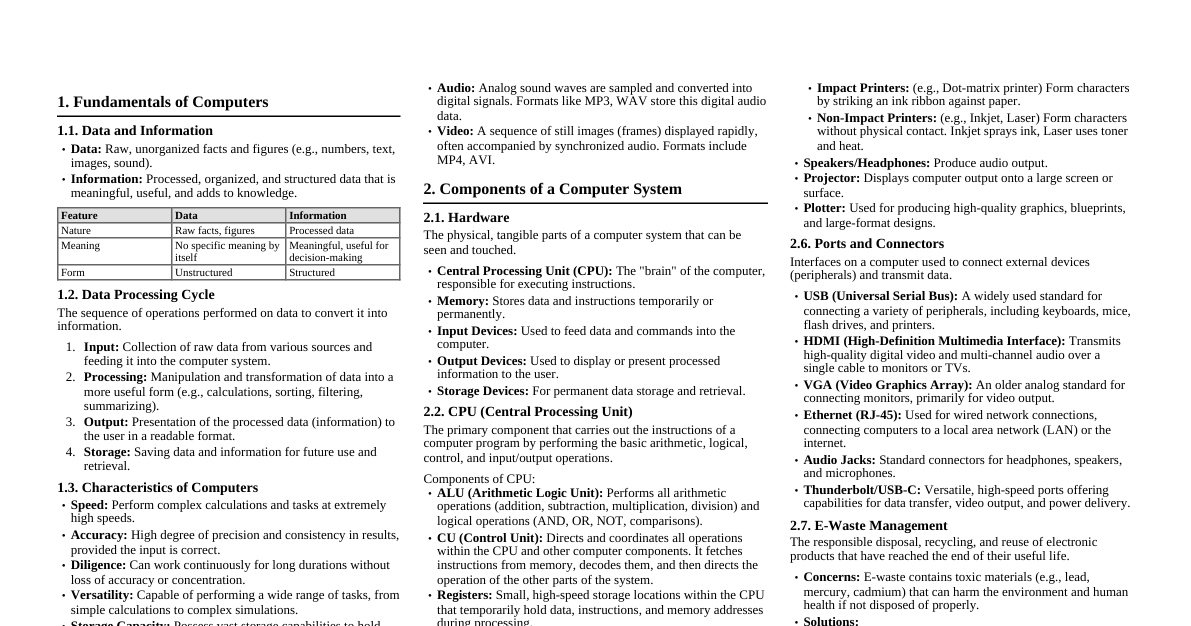
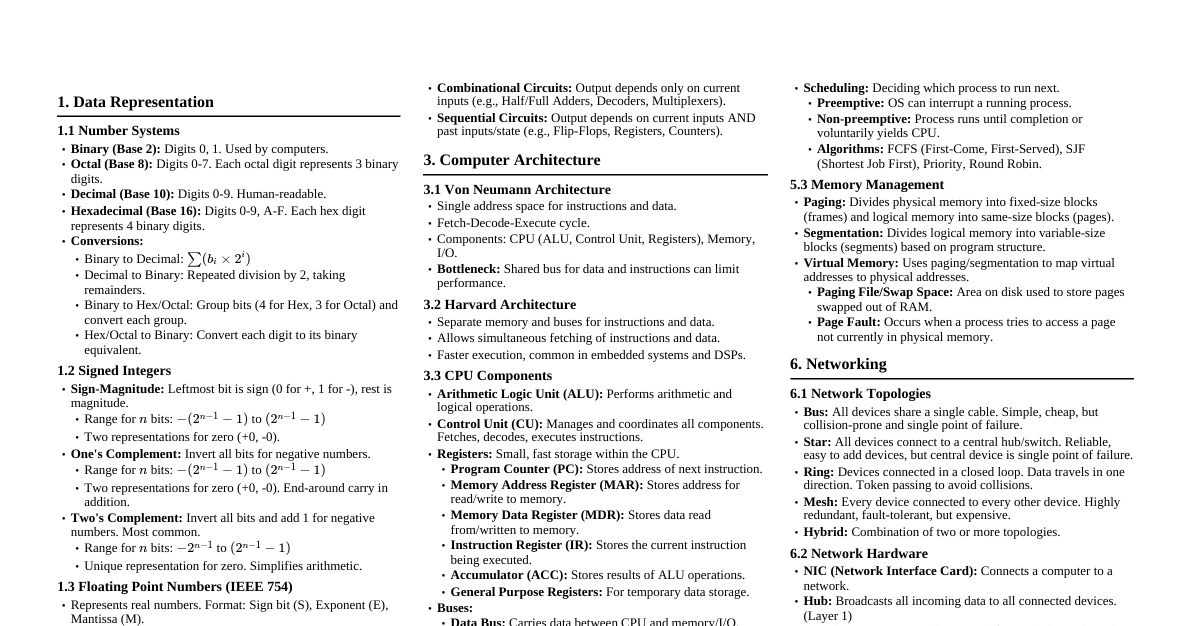
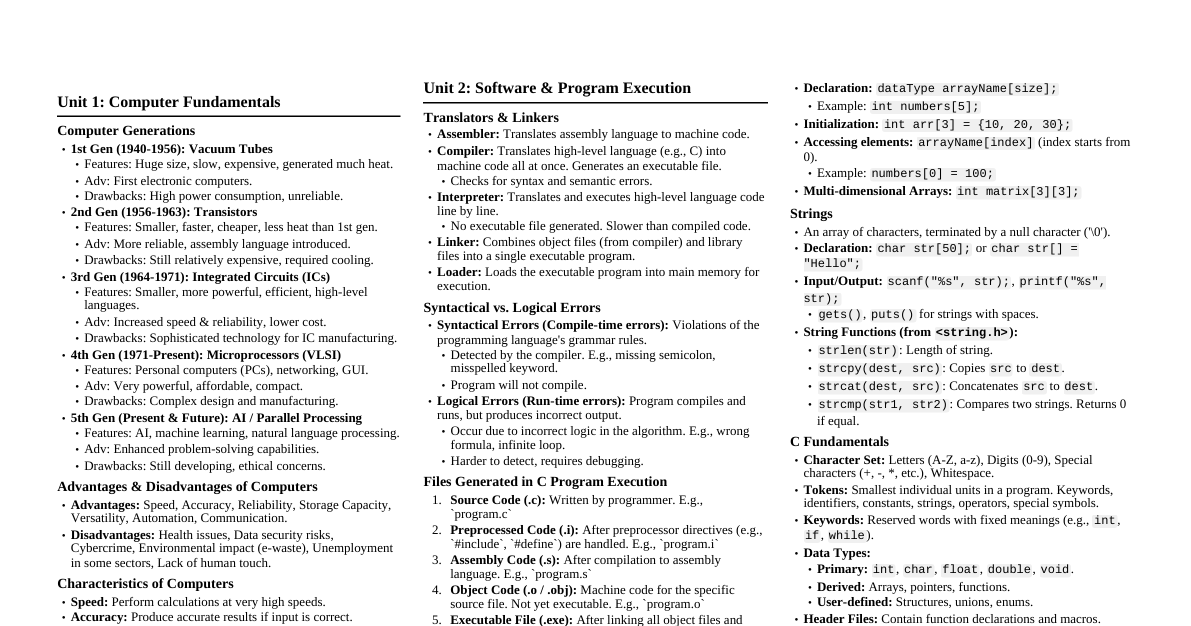
1. Number Systems Binary to Decimal Conversion To convert $1101_2$ to decimal: $1 \times 2^3 = 1 \times 8 = 8$ $1 \times 2^2 = 1 \times 4 = 4$ $0 \times 2^1 = 0 \times 2 = 0$ $1 \times 2^0 = 1 \times 1 = 1$ Sum: $8 + 4 + 0 + 1 = 13_{10}$ Types of Number Systems Binary (Base 2): Uses digits 0, 1. Fundamental for computers. Octal (Base 8): Uses digits 0-7. Compact representation of binary. Decimal (Base 10): Uses digits 0-9. Everyday number system. Hexadecimal (Base 16): Uses digits 0-9 and A-F. Used for memory addresses, colors. 2. Storage Devices Secondary Storage Devices Purpose: Non-volatile storage for data and programs, retaining information even when power is off. It provides larger storage capacity at a lower cost than primary memory (RAM). Hard Disk Drive (HDD): Magnetic storage, high capacity, relatively slow access. Solid State Drive (SSD): Flash-based storage, faster than HDD, more durable. USB Flash Drive: Portable, convenient for data transfer. Optical Discs (CD/DVD/Blu-ray): Uses lasers for reading/writing data. 3. Computer Networks Definition & Classification A computer network is a group of interconnected computers and devices that can share resources and exchange data. Local Area Network (LAN): Connects devices in a limited geographical area (e.g., home, office building). Wide Area Network (WAN): Connects devices over a large geographical area (e.g., cities, countries). The Internet is the largest WAN. Metropolitan Area Network (MAN): Covers an area larger than a LAN but smaller than a WAN (e.g., a city or a large campus). Network Comparison Type Coverage Area Applications Usage Scenarios LAN Small (Building, Campus) Resource sharing (printers), file sharing, local gaming Home networks, small business offices, university departments MAN Medium (City, Large Campus) Connecting multiple LANs within a city, municipal services City-wide surveillance systems, large corporate networks across a city WAN Large (Countries, Global) Global communication, Internet access, connecting remote branches The Internet, multinational corporate networks, cloud services 4. Operating Systems (OS) Types of Operating Systems Batch OS: Executes jobs in batches without direct user interaction. (e.g., payroll systems) Time-Sharing OS: Allows multiple users to share a computer simultaneously by rapidly switching between tasks. (e.g., mainframes) Distributed OS: Manages a group of independent computers as a single coherent system. (e.g., network of workstations) Network OS: Runs on a server and enables client computers to share resources and data. (e.g., Windows Server, Linux Server) Real-Time OS (RTOS): Guarantees processing of events or data within specific time constraints. (e.g., industrial control systems, medical imaging) Mobile OS: Designed for mobile devices. (e.g., Android, iOS) Multi-user OS: Allows multiple users to access a single computer system concurrently. (e.g., Linux, Windows Server) Linux Operating System Linux is a Unix-like, open-source, and community-developed operating system. It's known for its stability, security, and flexibility. File Handling Commands: ls : List directory contents cp : Copy files or directories mv : Move or rename files or directories rm : Remove files or directories mkdir : Create directories MS-Windows Features Graphical User Interface (GUI): Intuitive visual interface. Multitasking: Run multiple applications simultaneously. Plug and Play: Automatic detection and configuration of hardware. Control Panel: Centralized location to manage system settings, hardware, software, and user accounts. Notepad: A basic text editor for creating and editing plain text files. Paint: A simple graphics editor for creating and editing images. Resource Allocation & Process Scheduling In a multi-user OS, resource allocation and process scheduling are crucial for fair and efficient system performance. Resource Allocation: The OS manages and distributes system resources (CPU time, memory, I/O devices) among multiple processes and users to prevent conflicts and ensure availability. Process Scheduling: The OS determines which process gets access to the CPU at any given time. Schedulers aim to optimize CPU utilization, maximize throughput, minimize latency, and ensure fairness among processes. Examples include Round Robin, Priority Scheduling, etc. 5. DOS Commands Internal DOS Commands (Built into COMMAND.COM ) DIR : Lists files and subdirectories in a directory. COPY : Copies one or more files to another location. DEL (or ERASE ): Deletes one or more files. CLS : Clears the screen. DATE : Displays or sets the system date. TIME : Displays or sets the system time. REN (or RENAME ): Renames a file or directory. MD (or MKDIR ): Creates a new directory. CD (or CHDIR ): Changes the current directory. TYPE : Displays the contents of a text file. External DOS Commands (Separate executable files) FORMAT : Formats a disk for use with DOS, preparing it to store data. DISKCOPY : Copies the entire contents of one floppy disk to another. XCOPY : Copies files and directory trees. More powerful than COPY . CHKDSK : Checks a disk and displays a status report. EDIT : A full-screen text editor. TREE : Displays a graphical directory tree. ATTRIB : Changes or views file attributes. SCANDISK : Checks and repairs disk errors. FDISK : Partitions a hard disk. UNDELETE : Recovers deleted files. 6. Data Organization: Drives, Files, Directories Data on a computer is organized hierarchically: Drives: Physical or logical storage units (e.g., C:, D:). They are the top-level containers for all data. Directories (Folders): Containers within drives (or other directories) that hold files and other subdirectories. They provide a way to group related files. Files: The basic unit of data storage, containing specific information (e.g., documents, images, programs). Files have names and extensions (e.g., document.docx ). Relationship: Drives contain directories, and directories contain files and other directories, forming a tree-like structure for efficient data management. 7. Input/Output Devices Input Device 1: Keyboard Function: Allows users to input text, numbers, and commands into the computer. Example: Standard QWERTY keyboard. Input Device 2: Mouse Function: Controls the cursor on the screen, enabling graphical interaction, pointing, clicking, and dragging. Example: Optical mouse, trackpad. Output Device: Monitor (Display Screen) Function: Visually displays text, graphics, and video output from the computer. Example: LCD, LED, OLED monitors. 8. Internet Connectivity Connecting to the Internet via Wi-Fi Router Connect Router: Plug the Wi-Fi router into power and connect it to the ISP's modem (e.g., cable modem, fiber ONT) using an Ethernet cable. Power On & Setup: Power on the router and modem. Access the router's administration page (usually via a web browser at an IP like 192.168.1.1 ) to configure Wi-Fi name (SSID) and password. Enable Wi-Fi on Computer: On your computer, open Wi-Fi settings. Select Network: Find your router's SSID in the list of available networks. Enter Password: Select your network and enter the Wi-Fi password (WPA2/WPA3 key). Connect: Your computer should now connect to the Wi-Fi network and gain Internet access. 9. HTML Basics Importance & Advantages HTML (HyperText Markup Language) is the standard markup language for creating web pages. It defines the structure and content of web pages. Advantages: Easy to Learn: Simple syntax, relatively low learning curve. Universally Supported: Supported by all web browsers. Open Standard: Not proprietary, freely available. Foundation of Web: Essential for structuring any web content. SEO Friendly: Well-structured HTML aids search engine optimization. Simple HTML Page Example <!DOCTYPE html> <html> <head> <title>My Simple Web Page</title> </head> <body> <h3>Welcome to My Page</h3> <p>This is a basic HTML page demonstrating various elements.</p> <h4>My Favorite Fruits</h4> <ul> <li>Apple</li> <li>Banana</li> <li>Cherry</li> </ul> <h4>Important Links</h4> <ul> <li><a href="https://www.google.com">Google</a></li> <li><a href="https://www.wikipedia.org">Wikipedia</a></li> </ul> <h4>Daily Schedule</h4> <table border="1"> <thead> <tr> <th>Time</th> <th>Activity</th> </tr> </thead> <tbody> <tr> <td>9:00 AM</td> <td>Morning Meeting</td> </tr> <tr> <td>1:00 PM</td> <td>Lunch Break</td> </tr> </tbody> </table> </body> </html> 10. Browser Bookmarks Efficient Navigation Browser bookmarks (or favorites) are saved shortcuts to specific web pages. They allow users to quickly access frequently visited websites without typing the URL each time. How to Use: Adding: Click the star icon (or similar) in the browser's address bar, or use a menu option to "Bookmark This Page". Organizing: Bookmarks can be organized into folders for better management (e.g., "Work", "News", "Research"). Accessing: Click on the bookmark from the browser's bookmark bar or menu. Benefits: Saves time, improves productivity, provides quick access to important resources. 11. Algorithm & Flowchart for Arithmetic Operations Algorithm START INPUT two numbers, $A$ and $B$. READ choice of operation (e.g., 1 for Add, 2 for Subtract, 3 for Multiply, 4 for Divide). IF choice is 1, then calculate $Sum = A + B$. ELSE IF choice is 2, then calculate $Difference = A - B$. ELSE IF choice is 3, then calculate $Product = A \times B$. ELSE IF choice is 4, then: IF $B = 0$, then DISPLAY "Cannot divide by zero". ELSE calculate $Quotient = A / B$. ELSE DISPLAY "Invalid Choice". DISPLAY the result of the chosen operation (Sum, Difference, Product, or Quotient). STOP Flowchart Start Input A, B Input Choice Choice = 1? Yes No Sum = A + B Choice = 2? Yes No Diff = A - B Choice = 3? Yes No Prod = A * B Choice = 4? Yes No B = 0? Yes No "Cannot / 0" Quot = A / B "Invalid Choice" Display Result Stop 12. ISPs in India Responsibilities & Role in Connectivity Internet Service Providers (ISPs) in India are companies that provide Internet access to individuals and organizations. Responsibilities: Providing Internet Access: Offering various connection types (broadband, fiber, mobile data). Infrastructure Management: Maintaining network infrastructure (cables, towers, servers). Bandwidth Provision: Ensuring sufficient bandwidth for smooth internet usage. Customer Support: Assisting users with connectivity issues and technical problems. Billing and Account Management: Managing user subscriptions and payments. Regulatory Compliance: Adhering to telecommunication regulations set by TRAI (Telecom Regulatory Authority of India) and other government bodies. Network Security: Implementing measures to protect their network and users from cyber threats (though users are also responsible for their own security). Role in Connectivity: Enabling Digital India: ISPs are crucial for achieving the "Digital India" vision by extending internet access to remote areas. Economic Growth: Facilitate e-commerce, online education, and digital services, contributing to economic development. Information Access: Provide citizens with access to information, government services, and global communication. Competition & Innovation: A competitive ISP market drives innovation and better service quality. Bridging Digital Divide: Efforts to provide affordable internet access to underserved populations. 13. Cloud Computing Benefits & Disadvantages for Businesses Benefits: Cost Savings: Reduces capital expenditure on hardware and infrastructure. Scalability: Easily scale resources up or down based on demand. Flexibility & Agility: Rapid deployment of services and applications. Reliability & Data Backup: Often includes robust backup and disaster recovery mechanisms. Accessibility: Access data and applications from anywhere, anytime. Collaboration: Facilitates team collaboration on shared documents and applications. Disadvantages: Security Concerns: Data privacy, compliance, and potential for breaches. Vendor Lock-in: Difficulty in migrating data and applications from one cloud provider to another. Internet Dependency: Requires a stable and fast internet connection. Limited Control: Less control over infrastructure compared to on-premise solutions. Cost Management: Can become expensive if not properly managed (e.g., unexpected data transfer costs). Role of ISPs in Cloud Connectivity ISPs are fundamental to cloud computing, as they provide the essential network connectivity that allows businesses to access cloud services. Their role includes: Reliable Bandwidth: Ensuring stable, high-speed internet connections to cloud data centers. Low Latency: Minimizing delays in data transmission for responsive cloud application performance. Network Resilience: Providing robust and redundant network infrastructure to minimize downtime. Direct Connect Options: Offering dedicated lines or private connections to major cloud providers for enhanced security and performance. IaaS, PaaS, SaaS Comparison Service Model Description User Manages Provider Manages Example IaaS (Infrastructure as a Service) Provides virtualized computing resources over the Internet. OS, applications, data, runtime Networking, storage, servers, virtualization Amazon EC2, Google Compute Engine, Azure VMs PaaS (Platform as a Service) Provides a platform allowing customers to develop, run, and manage applications without the complexity of building and maintaining infrastructure. Applications, data OS, runtime, middleware, networking, servers, storage, virtualization Google App Engine, AWS Elastic Beanstalk, Heroku SaaS (Software as a Service) Provides ready-to-use software applications over the Internet. (User data) All infrastructure, platform, and application software Gmail, Salesforce, Dropbox, Microsoft 365 Cloud Security Challenges & Mitigation Challenges: Data Breaches: Unauthorized access to sensitive data. Insecure Interfaces/APIs: Weak points in cloud service management. Account Hijacking: Compromised credentials leading to unauthorized access. DDoS Attacks: Overwhelming cloud resources to deny service. Insider Threats: Malicious or negligent actions by employees. Compliance Issues: Meeting regulatory requirements (e.g., GDPR, HIPAA). Mitigation Strategies: Strong Access Controls: Multi-factor authentication (MFA), role-based access control (RBAC). Data Encryption: Encrypting data at rest and in transit. Regular Audits & Monitoring: Continuously checking for vulnerabilities and suspicious activity. Vendor Security Assessment: Thoroughly vetting cloud providers' security practices. Data Loss Prevention (DLP): Tools to prevent sensitive data from leaving defined boundaries. Incident Response Plan: Having a clear plan to react to security incidents. Security Awareness Training: Educating employees on best security practices. 14. Netiquette Importance in Digital Communication Netiquette refers to the set of unwritten rules of conduct for behaving courteously and respectfully in online environments. Importance: Fosters Positive Communication: Promotes clear, respectful, and effective exchanges. Prevents Misunderstandings: Online communication lacks non-verbal cues, so good netiquette helps avoid misinterpretations. Builds Professionalism: Essential for maintaining a professional image in emails, forums, and social media. Ensures Inclusivity: Makes online spaces welcoming for diverse participants. Reduces Conflict: Adherence to norms helps de-escalate potential arguments and cyberbullying. Maintains Security: Good practices (e.g., not sharing personal info) contribute to online safety. Examples: Be concise, avoid all caps, respect privacy, don't spam, proofread messages. 15. Computer Characteristics & Applications Characteristics of Computers Speed: Can perform calculations and process data at extremely high speeds. Accuracy: Produce highly accurate results, provided the input and programming are correct. Diligence: Can perform repetitive tasks tirelessly without loss of accuracy or speed. Versatility: Capable of performing a wide range of tasks, from complex calculations to simple word processing. Storage Capacity: Can store vast amounts of data and retrieve it quickly. Automation: Can perform tasks automatically once programmed. Applications of Computers Education: E-learning, online research, educational software. Business: Accounting, inventory management, e-commerce, data analysis. Science & Engineering: Simulations, data modeling, CAD/CAM, research. Medicine: Diagnostics, patient monitoring, medical imaging, research. Entertainment: Gaming, streaming, multimedia editing. Communication: Email, instant messaging, social media, video conferencing. Government: Census, e-governance, defense, law enforcement. Banking & Finance: Online banking, stock trading, ATMs.