Android Development Cheatsheet
Cheatsheet Content
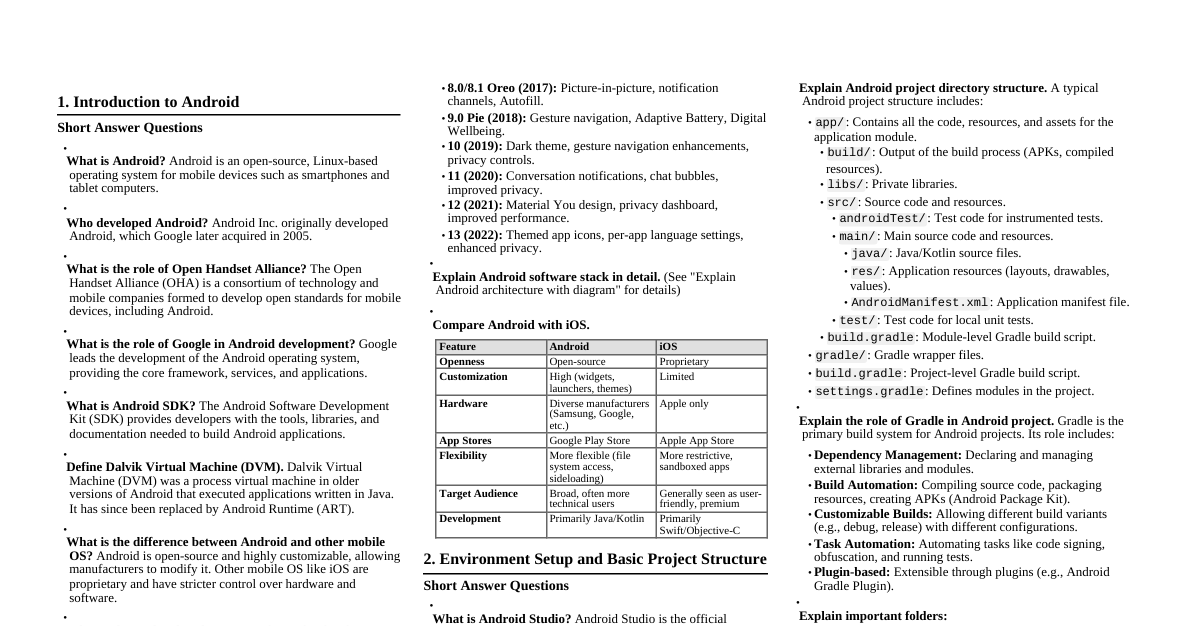
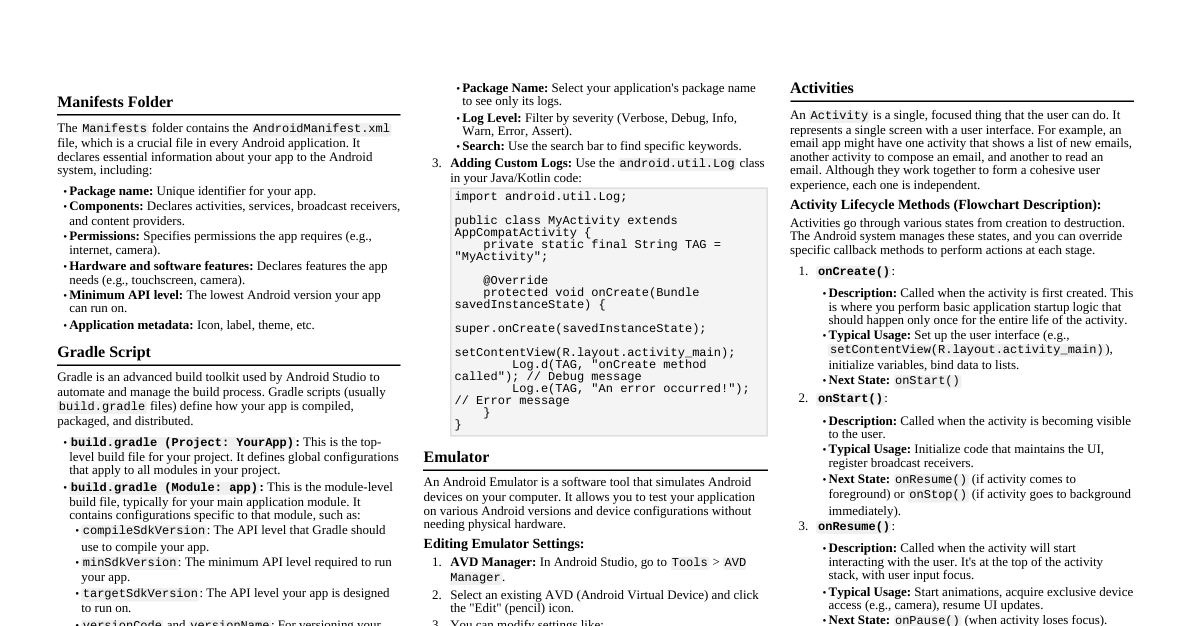
### History of Android - **2003:** Android Inc. founded by Andy Rubin, Rich Miner, Nick Sears, and Chris White. - **2005:** Google acquires Android Inc. - **2007:** Open Handset Alliance (OHA) formed. - **2008:** First Android phone (HTC Dream/T-Mobile G1) released. - **2009 onwards:** Rapid growth and version releases (Cupcake, Donut, Eclair, Froyo, Gingerbread, Honeycomb, Ice Cream Sandwich, Jelly Bean, KitKat, Lollipop, Marshmallow, Nougat, Oreo, Pie, Android 10, 11, 12, 13, 14). ### Features of Android - **Open Source:** AOSP (Android Open Source Project) allows customization. - **Linux Kernel:** Based on a modified version of the Linux kernel. - **Rich UI:** Customizable widgets, notifications, and themes. - **Connectivity:** Supports GSM/EDGE, IDEN, CDMA, EV-DO, UMTS, Bluetooth, Wi-Fi, LTE, 5G, NFC. - **Storage:** SQLite for data storage. - **Media Support:** Various audio/video/image formats. - **Multitasking:** Supports multiple applications running concurrently. - **Multi-Touch:** Native support for multi-touch. - **Multi-Language:** Supports a wide range of languages. - **Google Play:** Vast app ecosystem. ### Android Devices - **Smartphones:** Primary target, wide range of manufacturers. - **Tablets:** Larger screen devices. - **Wearables:** Android Wear/Wear OS smartwatches. - **TVs:** Android TV set-top boxes and smart TVs. - **Automotive:** Android Auto for in-car infotainment. - **IoT Devices:** Various embedded systems. ### Android Versions Android versions are famously named after desserts in alphabetical order (until Android 10). - **1.5 Cupcake** - **1.6 Donut** - **2.0/2.1 Eclair** - **2.2 Froyo** - **2.3 Gingerbread** - **3.x Honeycomb** (Tablet-specific) - **4.0 Ice Cream Sandwich** - **4.1-4.3 Jelly Bean** - **4.4 KitKat** - **5.0/5.1 Lollipop** - **6.0 Marshmallow** - **7.0/7.1 Nougat** - **8.0/8.1 Oreo** - **9 Pie** - **10** (No dessert name) - **11, 12, 13, 14** (Numbered releases) ### Open Handset Alliance (OHA) - **Definition:** A consortium of companies committed to advancing open standards for mobile devices. - **Members:** Google, device manufacturers (Samsung, HTC, LG), mobile carriers (T-Mobile, Sprint), semiconductor companies (Qualcomm, Texas Instruments), and software companies. - **Goal:** To foster innovation and provide a better user experience for mobile users. ### Advantages of Android - **Open Source:** Flexibility for developers and manufacturers. - **Large Market Share:** Dominant OS globally, large user base. - **Customization:** Highly customizable UI and features. - **Hardware Variety:** Available on a wide range of devices and price points. - **Google Services Integration:** Deep integration with Google's ecosystem (Gmail, Maps, YouTube, etc.). - **Developer Friendly:** Extensive documentation, tools, and community support. ### Comparing Android with Other Platforms | Feature | Android | iOS | |------------------|-------------------------------------------|-------------------------------------------| | **Openness** | Open Source (AOSP) | Closed Source | | **Customization**| High | Limited | | **Hardware** | Diverse manufacturers, wide range of prices | Apple only, premium pricing | | **App Store** | Google Play Store | Apple App Store | | **Flexibility** | More flexible for developers and users | More controlled, consistent user experience | | **Monetization** | Ads, in-app purchases, subscriptions | In-app purchases, subscriptions, premium apps | ### Architecture of Android - **Linux Kernel:** Foundation layer, handles hardware drivers, process management, memory management, power management. - **Hardware Abstraction Layer (HAL):** Standardized interface for hardware vendors to implement drivers. - **Android Runtime (ART):** Replaced Dalvik. Executes app bytecode (DEX files) efficiently. Includes a core library. - **Native C/C++ Libraries:** OpenGL ES, WebKit, SQLite, Media Framework, etc. - **Java API Framework:** Provides high-level services for applications (Activity Manager, Package Manager, Content Providers, View System, Resource Manager). - **Applications:** User-facing apps, both system apps and third-party apps. ### Android Directory Structure - `app/`: Contains all code and resources for the application. - `src/main/java/`: Java/Kotlin source code. - `src/main/res/`: Resources (layouts, drawables, values, etc.). - `drawable/`: Image files (PNG, JPG, XML drawables). - `layout/`: XML layout files for UI. - `mipmap/`: Launcher icons. - `values/`: XML files for strings, colors, styles, dimensions. - `src/main/AndroidManifest.xml`: Application manifest file. - `gradle/`: Gradle wrapper files. - `build/`: Output of the build process. - `libs/`: Private libraries. - `settings.gradle`: Specifies modules in the project. - `build.gradle` (Project): Top-level build configuration. - `build.gradle` (Module): Module-specific build configuration. ### Structure of Manifest Files The `AndroidManifest.xml` file describes the fundamental characteristics of an app and defines each of its components. ```xml ``` - **` `:** Root element. Declares `package`, `xmlns:android`. - **` `:** Declares permissions required by the app (e.g., `INTERNET`, `CAMERA`). - **` `:** Declares hardware or software features used by the app. - **` `:** Declares core application properties (icon, label, theme, backup settings). - **` `:** Declares an activity. - **` `:** Specifies the types of intents an activity, service, or broadcast receiver can respond to. `MAIN` action and `LAUNCHER` category make it the app's entry point. - **` `:** Declares a service component. - **` `:** Declares a broadcast receiver component. - **` `:** Declares a content provider component. ### Android Development Tools - **Android Studio:** Official IDE, based on IntelliJ IDEA. Includes code editor, debugger, performance profiler, emulator, etc. - **SDK (Software Development Kit):** Required components for building Android apps (APIs, tools, libraries). - **Android Emulator:** Virtual device to run and test apps on various configurations. - **ADB (Android Debug Bridge):** Command-line tool for communication between development machine and device/emulator. - **Gradle:** Build automation system. - **Git:** Version control system. - **Firebase:** Google's mobile and web application development platform (authentication, database, analytics, etc.). ### Views and ViewGroups - **View:** The basic building block of UI. A small rectangular area on the screen that responds to user input (e.g., Button, TextView). - **ViewGroup:** An invisible container that holds other Views and ViewGroups to define the layout of the UI (e.g., LinearLayout, RelativeLayout). ### Widgets Common UI elements (subclasses of View): - **Button:** A clickable UI element. ```xml ``` - **EditText:** An editable text input field. ```xml ``` - **CheckBox:** A two-state button that can be either checked or unchecked. ```xml ``` - **TextView:** Displays uneditable text. ```xml ``` - **ToggleButton:** A two-state button that switches between ON and OFF. ```xml ``` ### Layouts Subclasses of ViewGroup used to arrange UI elements: - **LinearLayout:** Arranges elements in a single row or column. ```xml ``` - **RelativeLayout:** Positions elements relative to each other or to the parent container. ```xml ``` - **ConstraintLayout:** Flexible layout system that allows you to define relationships (constraints) between views. Recommended for complex UIs. - **FrameLayout:** Designed to block out an area on the screen to display a single item. Items are stacked on top of each other. - **TableLayout:** Arranges elements into rows and columns, similar to an HTML table. ### Styles and Themes - **Style:** A collection of attributes that specify the look and format for a View or a window. Defined in `res/values/styles.xml`. ```xml ``` Apply to a View: ` ` - **Theme:** A style applied to an entire Activity or application, affecting all views within it. ```xml ``` ### Orientation, Screen Size and Density - **Orientation:** - **Portrait:** Vertical screen orientation. - **Landscape:** Horizontal screen orientation. - Handled by rotating the UI or providing alternative layouts (`layout-land/`). - **Screen Size:** Actual physical size of the screen (e.g., small, normal, large, xlarge). - Provide alternative resources: `layout-large/`, `values-xlarge/`. - **Screen Density (dpi):** The number of pixels within a physical area of the screen. - **ldpi (low):** ~120 dpi - **mdpi (medium):** ~160 dpi (baseline) - **hdpi (high):** ~240 dpi - **xhdpi (extra-high):** ~320 dpi - **xxhdpi (extra-extra-high):** ~480 dpi - **xxxhdpi (extra-extra-extra-high):** ~640 dpi - Provide alternative drawables: `drawable-mdpi/`, `drawable-hdpi/`, etc. ### Units of Measurement - px, dp, sp, dpi, pt - **px (pixels):** Actual pixels on the screen. Device-dependent. Avoid for UI layout. - **dp (density-independent pixels) / dip:** Abstract unit based on physical density. 1dp = 1px on a 160dpi screen. Scales with screen density. **Use for UI element sizes.** - **sp (scale-independent pixels):** Similar to dp, but also scaled by user's font size preference. **Use for text sizes.** - **dpi (dots per inch):** Physical density of the screen. - **pt (points):** 1/72 of an inch, based on physical size. Not recommended for Android UI. #### Conversion of dp to px `px = dp * (dpi / 160)` or more commonly: `px = dp * (density)` where `density` is `DisplayMetrics.density` Example: On an xhdpi device (320 dpi), density = 2.0. So 100dp = 100 * 2 = 200px. ### Activities - **Definition:** A single screen with a user interface. It's the entry point for user interaction (e.g., an email inbox screen, a photo gallery screen). - An application typically consists of multiple activities, loosely coupled. ### Activity Lifecycle - **`onCreate()`:** Called when the activity is first created. Perform basic setup (e.g., `setContentView()`). - **`onStart()`:** Activity becomes visible to the user. - **`onResume()`:** Activity comes to the foreground, user can interact with it. - **`onPause()`:** Another activity comes to the foreground, but the current activity is still visible (e.g., a transparent activity). Save UI state. - **`onStop()`:** Activity is no longer visible to the user. Release resources that are not needed when hidden. - **`onDestroy()`:** Activity is about to be destroyed. Final cleanup. - **`onRestart()`:** Called after `onStop()` when the activity is being re-displayed. ### Intents - **Definition:** A messaging object used to request an action from another app component (Activity, Service, Broadcast Receiver). - **Types of Intents:** - **Explicit Intent:** Specifies the exact component to start (e.g., `new Intent(this, TargetActivity.class)`). Used within the same app. - **Implicit Intent:** Declares a general action to perform, allowing the Android system to find a suitable component (e.g., `ACTION_VIEW` for a URL, `ACTION_DIAL` for a phone number). ### Intent Filter - **Definition:** An expression in an app's manifest file that specifies the types of intents that an activity, service, or broadcast receiver can respond to. - **Components:** - **` `:** The general action to be performed (e.g., `android.intent.action.VIEW`). - **` `:** Provides additional information about the kind of component that should handle the intent (e.g., `android.intent.category.BROWSABLE`). - **` `:** Specifies the data type (MIME type) and/or URI scheme that the component can handle. ```xml ``` ### Fragment - **Definition:** A modular section of an Activity with its own lifecycle, input events, and UI. Allows for flexible UI design, especially for tablets and multi-pane layouts. - An Activity can host multiple Fragments. A Fragment must always be embedded in an Activity. ### Fragment Lifecycle - **`onAttach()`:** Fragment has been attached to its host Activity. - **`onCreate()`:** Called to do initial creation of the fragment. - **`onCreateView()`:** Called to create the fragment's view hierarchy. - **`onViewCreated()`:** Called after `onCreateView()` returns, but before any saved state has been restored. - **`onActivityCreated()`:** Called when the host activity's `onCreate()` method has completed. - **`onStart()`:** Fragment becomes visible. - **`onResume()`:** Fragment is active and user-visible. - **`onPause()`:** Another activity/fragment comes to foreground, current fragment is partially obscured. - **`onStop()`:** Fragment is no longer visible. - **`onDestroyView()`:** Fragment's UI is being removed from the view hierarchy. - **`onDestroy()`:** Fragment is no longer in use. - **`onDetach()`:** Fragment is being detached from its host Activity. ### Services - **Definition:** An application component that can perform long-running operations in the background without a user interface. - **Types:** - **Started Service:** Started by a component (e.g., Activity) and runs in the background. Does not return a result. - **Bound Service:** Allows other components to bind to it and interact with it. - **Foreground Service:** A service that is noticeable to the user (e.g., playing music). Requires a notification. ### Broadcast Receivers - **Definition:** An application component that allows the system (or other apps) to deliver events to the app. Responds to system-wide broadcast announcements (e.g., battery low, SMS received, boot complete). - **Registration:** Can be registered dynamically (in code) or statically (in `AndroidManifest.xml`). ### Content Providers - **Definition:** Manages access to a structured set of data. Encapsulates the data and provides a standard interface to it. - **Purpose:** Allows applications to share data with other applications. - **Standard Methods:** `query()`, `insert()`, `update()`, `delete()`. - Example: Accessing contacts, calendar, or media data. ### Starting a New Activity - Use an `Intent` to start an activity. - **Explicit Intent:** ```java Intent intent = new Intent(this, DetailActivity.class); startActivity(intent); ``` - **Implicit Intent:** ```java // View a web page Uri webpage = Uri.parse("http://www.google.com"); Intent intent = new Intent(Intent.ACTION_VIEW, webpage); if (intent.resolveActivity(getPackageManager()) != null) { startActivity(intent); } ``` ### Sending and Receiving of Data - **Sending Data (via Intent Extras):** ```java Intent intent = new Intent(this, DetailActivity.class); intent.putExtra("key_string", "Hello from MainActivity"); intent.putExtra("key_int", 123); startActivity(intent); ``` - **Receiving Data (in Target Activity):** ```java // In DetailActivity.java onCreate() Bundle extras = getIntent().getExtras(); if (extras != null) { String message = extras.getString("key_string"); int number = extras.getInt("key_int", 0); // 0 is default value // Use message and number } ``` - **Starting Activity for Result:** - `startActivityForResult(intent, REQUEST_CODE)` (deprecated in favor of Activity Result API). - **Activity Result API (Recommended):** ```java // In calling Activity ActivityResultLauncher launcher = registerForActivityResult( new ActivityResultContracts.StartActivityForResult(), result -> { if (result.getResultCode() == Activity.RESULT_OK) { Intent data = result.getData(); String returnedData = data.getStringExtra("result_key"); // Handle returnedData } }); // To launch Intent intent = new Intent(this, ResultActivity.class); launcher.launch(intent); ``` - **Returning Result (in called Activity):** ```java // In ResultActivity.java Intent resultIntent = new Intent(); resultIntent.putExtra("result_key", "Data from ResultActivity"); setResult(Activity.RESULT_OK, resultIntent); finish(); ``` ### SQLite Database - **Definition:** Android uses SQLite, a lightweight, file-based relational database. - **Helper Class:** `SQLiteOpenHelper` is commonly used to manage database creation and versioning. - **Creating a Database Helper:** ```java public class MyDBHelper extends SQLiteOpenHelper { private static final String DATABASE_NAME = "mydatabase.db"; private static final int DATABASE_VERSION = 1; public MyDBHelper(Context context) { super(context, DATABASE_NAME, null, DATABASE_VERSION); } @Override public void onCreate(SQLiteDatabase db) { String CREATE_TABLE = "CREATE TABLE users (id INTEGER PRIMARY KEY, name TEXT)"; db.execSQL(CREATE_TABLE); } @Override public void onUpgrade(SQLiteDatabase db, int oldVersion, int newVersion) { db.execSQL("DROP TABLE IF EXISTS users"); onCreate(db); } } ``` ### Cursors and Content Values - **ContentValues:** Used to store a set of values that the `ContentResolver` can process. Key-value pairs, where keys are column names and values are the data. ```java ContentValues values = new ContentValues(); values.put("name", "John Doe"); values.put("age", 30); ``` - **Cursor:** Provides random read-write access to the result set returned by a database query. It's like an iterator for database results. ```java Cursor cursor = db.query("users", new String[]{"id", "name"}, "id = ?", new String[]{"1"}, null, null, null); if (cursor != null && cursor.moveToFirst()) { int id = cursor.getInt(cursor.getColumnIndexOrThrow("id")); String name = cursor.getString(cursor.getColumnIndexOrThrow("name")); cursor.close(); } ``` ### Opening and Closing Database - **Opening:** - `MyDBHelper dbHelper = new MyDBHelper(context);` - `SQLiteDatabase db = dbHelper.getWritableDatabase();` (for read/write) - `SQLiteDatabase db = dbHelper.getReadableDatabase();` (for read-only) - **Closing:** Always close the database and cursors to prevent memory leaks. - `db.close();` - `cursor.close();` ### Sensors - **Definition:** Android devices have various sensors for motion, position, and environment. - **Types:** - **Motion:** Accelerometer, Gyroscope, Gravity sensor, Linear acceleration sensor, Rotation vector sensor. - **Position:** Geomagnetic field sensor, Proximity sensor. - **Environment:** Ambient temperature sensor, Light sensor, Pressure sensor, Relative humidity sensor. - **SensorManager:** System service to access sensors. - **SensorEventListener:** Interface to receive sensor data changes. ```java SensorManager sensorManager = (SensorManager) getSystemService(Context.SENSOR_SERVICE); Sensor accelerometer = sensorManager.getDefaultSensor(Sensor.TYPE_ACCELEROMETER); sensorManager.registerListener(this, accelerometer, SensorManager.SENSOR_DELAY_NORMAL); @Override public void onSensorChanged(SensorEvent event) { if (event.sensor.getType() == Sensor.TYPE_ACCELEROMETER) { float x = event.values[0]; float y = event.values[1]; float z = event.values[2]; // Process accelerometer data } } ``` ### Bluetooth - **Permissions:** `BLUETOOTH`, `BLUETOOTH_ADMIN`, `ACCESS_FINE_LOCATION` (for scanning). - **BluetoothAdapter:** Represents the device's Bluetooth radio. - **Steps:** 1. **Check Bluetooth Support:** `bluetoothAdapter != null`. 2. **Enable Bluetooth:** `startActivityForResult(new Intent(BluetoothAdapter.ACTION_REQUEST_ENABLE), REQUEST_ENABLE_BT)`. 3. **Find Devices:** `bluetoothAdapter.startDiscovery()`. Register a `BroadcastReceiver` for `BluetoothDevice.ACTION_FOUND`. 4. **Connect:** Use `BluetoothSocket` for client/server communication. ### Geo Location - **Permissions:** `ACCESS_FINE_LOCATION`, `ACCESS_COARSE_LOCATION`. - **LocationManager:** System service for location updates. - **FusedLocationProviderClient (Google Play Services):** Recommended for modern location updates. ```java // In Activity FusedLocationProviderClient fusedLocationClient; fusedLocationClient = LocationServices.getFusedLocationProviderClient(this); // Request location updates fusedLocationClient.getLastLocation() .addOnSuccessListener(this, location -> { if (location != null) { // Got last known location. In some rare situations this can be null. double latitude = location.getLatitude(); double longitude = location.getLongitude(); } }); ``` - **Geocoding:** Converting coordinates to addresses (`Geocoder`). - **Reverse Geocoding:** Converting addresses to coordinates (`Geocoder`). ### SMS & MMS - **Permissions:** `SEND_SMS`, `READ_SMS`, `RECEIVE_SMS`. - **Sending SMS:** `SmsManager` class. ```java SmsManager smsManager = SmsManager.getDefault(); smsManager.sendTextMessage("phone_number", null, "message_text", null, null); ``` - **Receiving SMS:** Use a `BroadcastReceiver` to listen for `SMS_RECEIVED_ACTION`. - **MMS:** More complex, often handled by third-party libraries or specific carrier APIs. ### Graphics and Animation - **Graphics:** - **Canvas and Paint:** Low-level drawing API. `Canvas` holds the "draw" calls, `Paint` holds the style/color information. - **Drawables:** Abstract visual assets (e.g., `BitmapDrawable`, `ShapeDrawable`, `VectorDrawable`, `LayerDrawable`). - **Bitmaps:** Raw image data. - **Animation:** - **View Animation:** Simple animations on `View` objects (alpha, scale, translate, rotate). Defined in XML or code. - **Property Animation:** More powerful, animates any object property. `ObjectAnimator`, `ValueAnimator`. - **Drawable Animation:** Frame-by-frame animation by showing a sequence of drawables. - **Transition Framework:** For animating changes between different layouts. ### Security - **Permissions:** Granular access control for app resources and system features. - **Data Storage:** - **Internal Storage:** Private to the app. - **External Storage:** Publicly accessible. Requires permissions. - **Shared Preferences:** Key-value pairs for small amounts of private data. - **Databases:** SQLite for structured data. - **Network Security:** HTTPS for secure communication, Network Security Configuration. - **Code Security:** ProGuard/R8 for obfuscation, code signing. - **Biometric Authentication:** Fingerprint, face unlock. ### Creating a Signing Certificate - **Purpose:** All Android applications must be digitally signed with a certificate before they can be installed. This certificate identifies the author of the application. - **Keystore:** A binary file that contains one or more private keys. - **Command Line (Keytool):** ```bash keytool -genkey -v -keystore my-release-key.jks -keyalg RSA -keysize 2048 -validity 10000 -alias my-alias ``` - `-genkey`: Generates a key pair. - `-v`: Verbose output. - `-keystore`: Name of the keystore file. - `-keyalg RSA`: Algorithm for the key. - `-keysize 2048`: Size of the key. - `-validity 10000`: Validity period in days. - `-alias`: Name for the key entry. - **Android Studio:** Build -> Generate Signed Bundle / APK... (guides you through the process). ### Signing Your Applications for Distribution - **Debug Build:** Android Studio automatically signs debug builds with a debug certificate. - **Release Build:** You must sign your app with your own private key. - **Gradle Configuration:** ```gradle // app/build.gradle android { ... signingConfigs { release { storeFile file("my-release-key.jks") storePassword "your_store_password" keyAlias "my-alias" keyPassword "your_key_password" } } buildTypes { release { signingConfig signingConfigs.release minifyEnabled true proguardFiles getDefaultProguardFile('proguard-android-optimize.txt'), 'proguard-rules.pro' } } } ``` - **Android App Bundle (AAB):** Recommended format for publishing to Google Play. Google Play handles generating and serving optimized APKs. ### Publishing on Google Play 1. **Create a Google Play Developer Account:** One-time registration fee. 2. **Prepare Your App:** - Sign your app with your release key. - Generate an Android App Bundle (.aab). - Create screenshots, feature graphic, short/long descriptions. - Set privacy policy. 3. **Google Play Console:** - Upload your AAB. - Configure store listing details (description, graphics, categories). - Set target audience and content rating. - Select countries/regions for distribution. - Choose release track (Internal, Closed, Open, Production). 4. **Review and Publish:** Google reviews your app for policy compliance. Once approved, it's published. ### Monetization Strategies - **Paid Apps:** Users pay a one-time fee to download the app. - **In-App Purchases (IAP):** Selling digital content or features within the app (e.g., premium features, virtual currency, subscriptions). - **Advertising:** Displaying ads within the app (e.g., Google AdMob banner, interstitial, rewarded video ads). - **Subscriptions:** Recurring payments for access to premium content or features. - **Freemium Model:** Offering a free basic version with limited features and a paid premium version with full features. ### Application Promotion Strategies - **App Store Optimization (ASO):** Optimizing app title, description, keywords, screenshots, and video to rank higher in app store searches. - **Social Media Marketing:** Promoting your app on platforms like Facebook, Instagram, Twitter. - **Content Marketing:** Creating blog posts, articles, videos related to your app's niche. - **Influencer Marketing:** Collaborating with influencers to promote your app. - **Paid Advertising:** Google Ads (Universal App Campaigns), social media ads. - **Press Releases & Media Outreach:** Getting coverage from tech blogs and news outlets. - **Email Marketing:** Building an email list and sending updates. - **Community Engagement:** Participating in forums, Reddit, etc. ### Using Google Analytics - **Purpose:** Track user engagement, app usage, and performance. - **Firebase Analytics:** The primary analytics solution for Android apps, integrated with Google Analytics. - **Key Metrics:** - **Active Users:** How many users are engaging with your app. - **Session Duration:** How long users spend in your app. - **Retention Rate:** How many users return to your app over time. - **Events:** Tracking specific user actions (e.g., button clicks, screen views, purchases). - **Crashes & Errors:** Monitoring app stability. - **Implementation:** Add Firebase SDK to your project, log events, and view reports in the Firebase Console. ```gradle // app/build.gradle dependencies { // ... implementation 'com.google.firebase:firebase-analytics:21.+' } ```