Android Development Basics
Cheatsheet Content
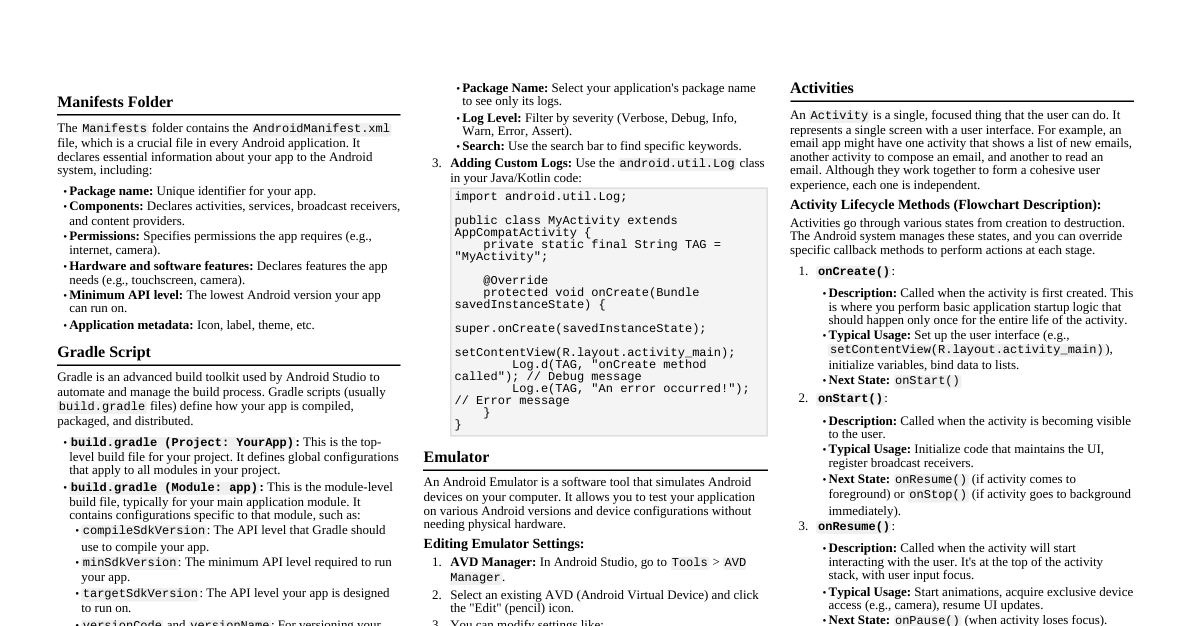
### 1. Introduction to Android #### Short Answer Questions - **What is Android?** Android is an open-source, Linux-based operating system for mobile devices such as smartphones and tablet computers. - **Who developed Android?** Android Inc. originally developed Android, which Google later acquired in 2005. - **What is the role of Open Handset Alliance?** The Open Handset Alliance (OHA) is a consortium of technology and mobile companies formed to develop open standards for mobile devices, including Android. - **What is the role of Google in Android development?** Google leads the development of the Android operating system, providing the core framework, services, and applications. - **What is Android SDK?** The Android Software Development Kit (SDK) provides developers with the tools, libraries, and documentation needed to build Android applications. - **Define Dalvik Virtual Machine (DVM).** Dalvik Virtual Machine (DVM) was a process virtual machine in older versions of Android that executed applications written in Java. It has since been replaced by Android Runtime (ART). - **What is the difference between Android and other mobile OS?** Android is open-source and highly customizable, allowing manufacturers to modify it. Other mobile OS like iOS are proprietary and have stricter control over hardware and software. - **What is the Android architecture?** The Android architecture is a software stack that includes the Linux Kernel, Hardware Abstraction Layer (HAL), Android Runtime (ART), Native C/C++ Libraries, Java API Framework, and System Apps. #### Long Answer Questions - **Explain Android architecture with diagram.** Android architecture is a layered stack. 1. **Linux Kernel:** The base layer, handling low-level hardware interaction, memory management, process management, and networking. 2. **Hardware Abstraction Layer (HAL):** Provides standard interfaces for hardware vendors to implement, allowing Android to be hardware-agnostic. 3. **Android Runtime (ART):** Replaced DVM, responsible for compiling Dalvik bytecode into native machine code during app installation, improving performance and battery life. 4. **Native C/C++ Libraries:** Includes libraries like OpenGL ES for 3D graphics, FreeType for font rendering, SQLite for database, and WebKit for browser engine. 5. **Java API Framework:** Provides high-level building blocks for app development, including Activity Manager, Package Manager, Content Providers, and View System. 6. **System Apps:** Core Android applications like Email, SMS Messaging, Calendars, Maps, Browser, Contacts, etc., built using the Java API Framework. - **Describe the features of Android OS.** Key features include: - **Open-source:** Freely available and modifiable. - **Customizable UI:** Manufacturers and users can personalize the interface. - **Multi-tasking:** Allows multiple applications to run simultaneously. - **Rich notification system:** Provides quick and interactive alerts. - **Connectivity:** Supports GSM/EDGE, IDEN, CDMA, EV-DO, UMTS, Bluetooth, Wi-Fi, LTE, NFC, and WiMAX. - **Media support:** Supports various audio/video/image formats. - **Google services:** Deep integration with Google apps and services. - **Large app ecosystem:** Google Play Store offers millions of applications. - **Explain the history and evolution of Android versions.** Android has evolved through many versions, each named after a dessert: - **1.5 Cupcake (2009):** On-screen keyboard, video recording. - **1.6 Donut (2009):** Quick search box, CDMA support. - **2.0/2.1 Eclair (2009):** Multiple accounts, Google Maps Navigation. - **2.2 Froyo (2010):** Wi-Fi hotspot, Flash support. - **2.3 Gingerbread (2010):** NFC support, improved gaming performance. - **3.x Honeycomb (2011):** Tablet-optimized UI. - **4.0 Ice Cream Sandwich (2011):** Unified phone/tablet UI, Face Unlock. - **4.1-4.3 Jelly Bean (2012-2013):** Project Butter (smoother UI), Google Now. - **4.4 KitKat (2013):** Optimized for lower-end devices, "OK Google" hotword. - **5.0/5.1 Lollipop (2014):** Material Design, ART runtime, improved notifications. - **6.0 Marshmallow (2015):** Doze mode, app permissions, fingerprint support. - **7.0/7.1 Nougat (2016):** Multi-window, VR mode, improved notifications. - **8.0/8.1 Oreo (2017):** Picture-in-picture, notification channels, Autofill. - **9.0 Pie (2018):** Gesture navigation, Adaptive Battery, Digital Wellbeing. - **10 (2019):** Dark theme, gesture navigation enhancements, privacy controls. - **11 (2020):** Conversation notifications, chat bubbles, improved privacy. - **12 (2021):** Material You design, privacy dashboard, improved performance. - **13 (2022):** Themed app icons, per-app language settings, enhanced privacy. - **Explain Android software stack in detail.** (See "Explain Android architecture with diagram" for details) - **Compare Android with iOS.** | Feature | Android | iOS | |-----------------|--------------------------------------------|------------------------------------------| | **Openness** | Open-source | Proprietary | | **Customization**| High (widgets, launchers, themes) | Limited | | **Hardware** | Diverse manufacturers (Samsung, Google, etc.) | Apple only | | **App Stores** | Google Play Store | Apple App Store | | **Flexibility** | More flexible (file system access, sideloading) | More restrictive, sandboxed apps | | **Target Audience** | Broad, often more technical users | Generally seen as user-friendly, premium | | **Development** | Primarily Java/Kotlin | Primarily Swift/Objective-C | ### 2. Environment Setup and Basic Project Structure #### Short Answer Questions - **What is Android Studio?** Android Studio is the official Integrated Development Environment (IDE) for Android application development, based on IntelliJ IDEA. - **What are the system requirements to install Android Studio?** Typically requires a 64-bit OS, 8 GB RAM (16 GB recommended), 8 GB available disk space, and a screen resolution of 1280x800. Specifics vary by version. - **What is SDK Manager?** The SDK Manager is a tool within Android Studio that allows developers to download, update, and manage various Android SDK components, platforms, and tools. - **What is AVD?** AVD stands for Android Virtual Device. It's an emulator configuration that lets you model an actual Android device, allowing you to test your applications on different Android versions and screen sizes without needing a physical device. - **What is Gradle?** Gradle is an advanced build automation system used in Android Studio to manage project dependencies, compile code, package applications, and automate various build tasks. - **What is the use of Android Emulator?** The Android Emulator simulates Android devices on your computer, allowing you to test your app on various virtual devices and configurations. - **What is the use of AndroidManifest.xml file?** The `AndroidManifest.xml` file is a crucial configuration file that describes the fundamental characteristics of an app and defines its components, permissions, hardware/software requirements, and entry points. #### Long Answer Questions - **Explain the steps to install Android Studio.** 1. **Download:** Go to the official Android Developers website and download the Android Studio installer for your operating system. 2. **Run Installer:** Execute the downloaded installer. 3. **Setup Wizard:** Follow the on-screen instructions, accepting default settings for components like Android SDK, Android Virtual Device, etc. 4. **SDK Components:** The setup wizard will download necessary SDK components. Ensure you have an active internet connection. 5. **Finish:** Once installation is complete, launch Android Studio. It might prompt you to download additional SDK components or updates. - **Explain the process of creating a new Android project.** 1. **Launch Android Studio:** Open Android Studio. 2. **New Project:** Select "New Project" from the welcome screen or File > New > New Project. 3. **Choose Template:** Select an Activity template (e.g., "Empty Activity") and click "Next." 4. **Configure Project:** - **Name:** Enter your application's name. - **Package Name:** A unique identifier for your app (e.g., `com.example.myapp`). - **Save Location:** Choose where to save your project. - **Language:** Select Java or Kotlin. - **Minimum SDK:** Choose the lowest Android version your app will support. 5. **Finish:** Click "Finish." Android Studio will set up the project, download dependencies, and build it. - **Explain Android project directory structure.** A typical Android project structure includes: - `app/`: Contains all the code, resources, and assets for the application module. - `build/`: Output of the build process (APKs, compiled resources). - `libs/`: Private libraries. - `src/`: Source code and resources. - `androidTest/`: Test code for instrumented tests. - `main/`: Main source code and resources. - `java/`: Java/Kotlin source files. - `res/`: Application resources (layouts, drawables, values). - `AndroidManifest.xml`: Application manifest file. - `test/`: Test code for local unit tests. - `build.gradle`: Module-level Gradle build script. - `gradle/`: Gradle wrapper files. - `build.gradle`: Project-level Gradle build script. - `settings.gradle`: Defines modules in the project. - **Explain the role of Gradle in Android project.** Gradle is the primary build system for Android projects. Its role includes: - **Dependency Management:** Declaring and managing external libraries and modules. - **Build Automation:** Compiling source code, packaging resources, creating APKs (Android Package Kit). - **Customizable Builds:** Allowing different build variants (e.g., debug, release) with different configurations. - **Task Automation:** Automating tasks like code signing, obfuscation, and running tests. - **Plugin-based:** Extensible through plugins (e.g., Android Gradle Plugin). - **Explain important folders:** - **`java/` (or `kotlin/`):** Contains the actual source code files (Java or Kotlin) for your application, organized by package name. - **`res/`:** Stands for "resources." This directory holds all non-code resources like layouts, images, strings, and styles. - **`drawable/`:** Stores various image assets (e.g., PNG, JPG, XML drawables) used in your application. Android can have multiple `drawable` folders for different screen densities (e.g., `drawable-hdpi`, `drawable-xhdpi`). - **`layout/`:** Contains XML files that define the user interface (UI) layouts for different screens or components of your app. - **`values/`:** Holds XML files for various simple values: - `strings.xml`: Defines all string literals used in the app. - `colors.xml`: Defines color resources. - `styles.xml`: Defines styles and themes for UI elements. - `dimens.xml`: Defines dimension values. - **`manifests/`:** Contains the `AndroidManifest.xml` file, which is the central configuration file for the Android application. It declares components, permissions, and features required by the app. ### 3. Android Fundamentals and User Interface Design #### Short Answer Questions - **What is an Activity?** An Activity is a single screen with a user interface. It represents a single, focused thing that the user can do. For example, an email app might have an activity for listing new emails, another for composing an email, and another for reading an email. - **What is an Intent?** An Intent is a messaging object used to request an action from another app component. It can be used to start an activity, start a service, or deliver a broadcast. - **What is a Service?** A Service is an application component that can perform long-running operations in the background without a user interface. For example, a service might play music or fetch data over the network. - **What is a Broadcast Receiver?** A Broadcast Receiver is an application component that allows the system or other applications to deliver events (broadcasts) to your app. For example, it can listen for battery low warnings or incoming SMS messages. - **What is a Content Provider?** A Content Provider manages access to a structured set of data. It provides a standard interface to query, insert, update, and delete data, often used to share data between applications. - **What is Layout?** A Layout in Android defines the visual structure for a user interface, such as the arrangement of UI elements (Views and ViewGroups) on a screen. - **What is LinearLayout?** LinearLayout is a ViewGroup that arranges its children (Views or other ViewGroups) in a single row or a single column. - **What is RelativeLayout?** RelativeLayout is a ViewGroup that displays child views in relative positions. The position of each view can be specified relative to sibling elements or to the parent. - **What is ConstraintLayout?** ConstraintLayout is a flexible and powerful ViewGroup that allows you to position and size views in a flexible way. It helps to create complex layouts with a flat view hierarchy, improving performance. - **What is the difference between wrap_content and match_parent?** - **`wrap_content`**: Causes the view to size itself to fit the content it holds. - **`match_parent`**: Causes the view to expand to fill the available space of its parent. (In older Android versions, this was `fill_parent`). #### Long Answer Questions - **Explain Android application components.** Android applications are built using four fundamental components: 1. **Activities:** Represent a single screen with a UI, where users interact with the app. They handle user interaction and manage their lifecycle. 2. **Services:** Perform background operations without a UI. They can run for a long time, even if the user switches to another app. 3. **Broadcast Receivers:** Respond to system-wide broadcast announcements (e.g., battery low, incoming SMS) or custom broadcasts from other apps. 4. **Content Providers:** Manage access to a structured set of data. They provide a standard interface for apps to share data with each other. - **Explain Activity lifecycle with diagram.** An Activity goes through several states from its creation to its destruction. - **`onCreate()`:** Called when the activity is first created. Used for static setup like creating views and binding data. - **`onStart()`:** Called when the activity becomes visible to the user. - **`onResume()`:** Called when the activity enters the foreground and the user can interact with it. The activity remains in this state until something takes focus away. - **`onPause()`:** Called when the activity is partially obscured or losing focus. Used to commit unsaved changes and stop animations/other CPU-intensive tasks. - **`onStop()`:** Called when the activity is no longer visible to the user. - **`onDestroy()`:** Called before the activity is destroyed, either by the system to reclaim resources or by the user finishing the activity. - **`onRestart()`:** Called when the activity is stopped and then restarted. ``` +---------------------------------------------------+ | Activity Lifecycle | +---------------------------------------------------+ | | | onCreate() --> onStart() --> onResume() | | ^ | | | | V | | onDestroy() onRestart() | | | (when returning from | | +----------------------- background) | | | +---------------------------------------------------+ ``` - **Explain different types of layouts.** - **LinearLayout:** Arranges views in a single row (horizontal) or column (vertical). Simple but can lead to nested layouts for complex UIs. - **RelativeLayout:** Positions views based on relationships to each other or to the parent container. More flexible than LinearLayout but can be complex for many relations. - **ConstraintLayout:** The most flexible and recommended layout. It uses constraints to define the position and size of views, allowing for flat and complex hierarchies, which are good for performance. - **FrameLayout:** Designed to block out an area on the screen to display a single item. Items are stacked on top of each other. - **TableLayout:** Arranges views into rows and columns, similar to an HTML table. - **GridLayout:** Arranges views in a rectangular grid of cells. - **Explain event handling in Android.** Event handling in Android involves responding to user interactions (like clicks, touches, key presses) or system events. Common methods include: - **`OnClickListener`:** For handling button clicks or other clickable views. You implement the `onClick(View v)` method. - **`OnLongClickListener`:** For handling long presses. - **`OnTouchListener`:** For handling touch events (down, up, move). - **`OnKeyListener`:** For handling hardware key presses. - **XML `android:onClick` attribute:** You can specify a method name in the layout XML that Android will call when the view is clicked. - **Explain UI controls:** - **TextView:** Displays static text to the user. - **EditText:** A text input field where users can type and edit text. - **Button:** A clickable UI element that performs an action when tapped. - **ImageView:** Displays an image resource (e.g., PNG, JPG) or vector drawable. - **RecyclerView:** A flexible view for efficiently displaying large sets of data in a scrollable list or grid. It recycles views that are no longer visible to improve performance. - **Explain XML-based UI design.** Android's UI is primarily defined using XML layout files. - **Declarative:** You describe what the UI should look like, rather than writing code to draw it programmatically. - **Separation of Concerns:** Separates UI design from application logic. - **Hierarchy:** Layouts form a view hierarchy, with ViewGroups as containers and Views as individual UI elements. - **Attributes:** Each UI element (View or ViewGroup) has XML attributes to define its appearance, size, position, and behavior (e.g., `android:layout_width`, `android:text`, `android:id`). - **Resources:** XML layouts reference resources defined in the `res/values` folder (strings, colors, dimensions) for easier internationalization and theming. - **Explain implicit and explicit intents.** - **Explicit Intent:** Specifies the exact component (Activity, Service, Broadcast Receiver) to start by name (e.g., `new Intent(this, TargetActivity.class)`). Used when you know exactly which component you want to launch, typically within your own app. - **Implicit Intent:** Declares a general action to perform (e.g., `ACTION_VIEW`, `ACTION_SEND`) and optionally a data type. The Android system then finds an appropriate component (potentially from another app) that can handle the intent. Used to delegate tasks to other apps (e.g., opening a webpage, sharing content). - **Explain Fragment lifecycle.** A Fragment is a modular portion of an Activity, having its own lifecycle, input events, and layout. Its lifecycle is closely tied to its host Activity's lifecycle. - **`onAttach()`:** Fragment has been associated with an Activity. - **`onCreate()`:** Fragment is being created. Initializing non-visual components. - **`onCreateView()`:** Fragment creates and returns its UI (View hierarchy). - **`onViewCreated()`:** Called immediately after `onCreateView()`. Used to perform final initialization of the View. - **`onActivityCreated()`:** Called when the host Activity's `onCreate()` method has completed. - **`onStart()`:** Fragment becomes visible. - **`onResume()`:** Fragment becomes active and is in the foreground. - **`onPause()`:** Fragment is no longer interactive, but still visible. - **`onStop()`:** Fragment is no longer visible. - **`onDestroyView()`:** The view hierarchy of the fragment is being removed. - **`onDestroy()`:** Fragment is being destroyed. - **`onDetach()`:** Fragment is no longer associated with its Activity.