Android Development Basics
Cheatsheet Content
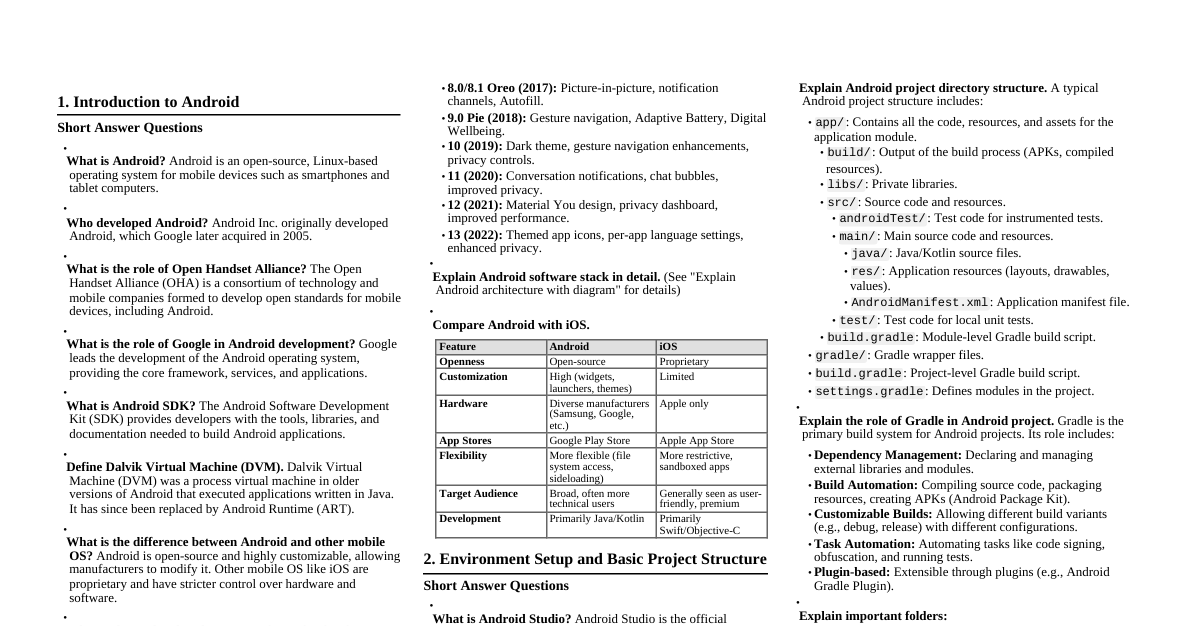
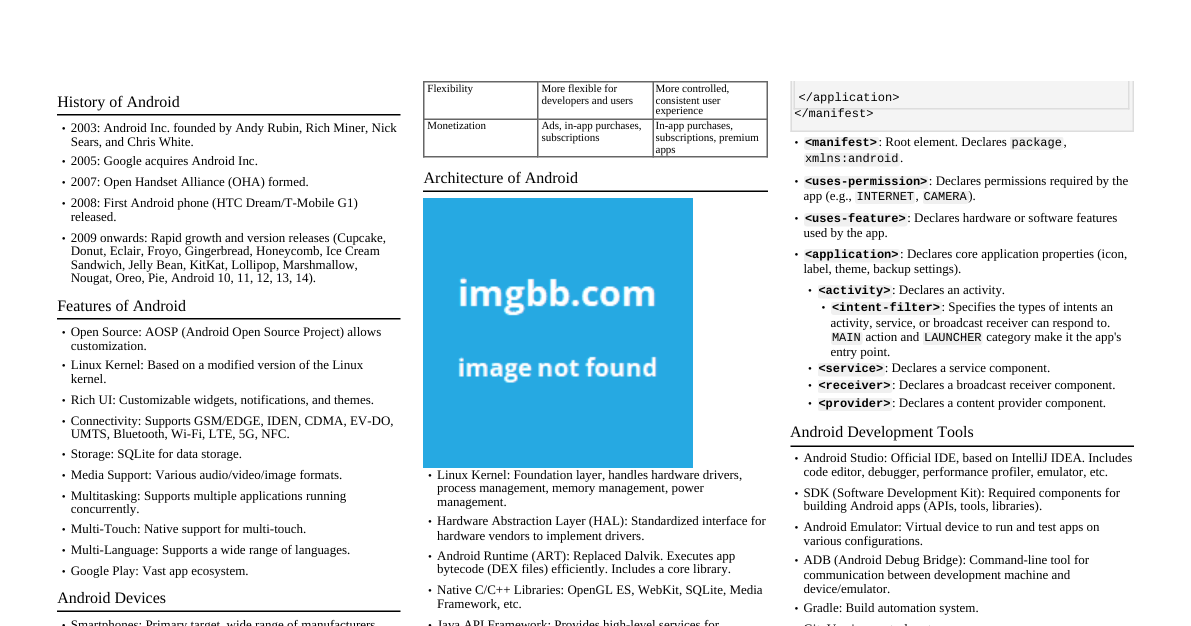
### Manifests Folder The `Manifests` folder contains the `AndroidManifest.xml` file, which is a crucial file in every Android application. It declares essential information about your app to the Android system, including: - **Package name:** Unique identifier for your app. - **Components:** Declares activities, services, broadcast receivers, and content providers. - **Permissions:** Specifies permissions the app requires (e.g., internet, camera). - **Hardware and software features:** Declares features the app needs (e.g., touchscreen, camera). - **Minimum API level:** The lowest Android version your app can run on. - **Application metadata:** Icon, label, theme, etc. ### Gradle Script Gradle is an advanced build toolkit used by Android Studio to automate and manage the build process. Gradle scripts (usually `build.gradle` files) define how your app is compiled, packaged, and distributed. - **`build.gradle (Project: YourApp)`:** This is the top-level build file for your project. It defines global configurations that apply to all modules in your project. - **`build.gradle (Module: app)`:** This is the module-level build file, typically for your main application module. It contains configurations specific to that module, such as: - `compileSdkVersion`: The API level that Gradle should use to compile your app. - `minSdkVersion`: The minimum API level required to run your app. - `targetSdkVersion`: The API level your app is designed to run on. - `versionCode` and `versionName`: For versioning your app. - `dependencies`: Libraries and modules your app depends on. ### Assets Assets are raw files that are packaged with your application and can be accessed by their original file names. They are typically used for game data, custom fonts, or other raw data that doesn't fit into Android's resource system. #### Steps to create Assets Folder: 1. In Android Studio, switch the Project view from "Android" to "Project Files". 2. Navigate to `app/src/main`. 3. Right-click on the `main` folder. 4. Select `New` > `Directory`. 5. Name the directory `assets` (all lowercase). 6. You can now place any raw files directly into this `assets` folder. ### Drawable Resource XML Files Drawable XML files define graphics that can be drawn on the screen, such as shapes, state lists, or layer lists. They are flexible and can adapt to different screen densities. #### Steps to create Drawable Resource XML files: 1. In Android Studio, navigate to the `res` folder in your project. 2. Right-click on the `drawable` folder. 3. Select `New` > `Drawable Resource File`. 4. In the dialog: - **File name:** Enter a name for your XML file (e.g., `my_shape_drawable`). - **Root element:** Choose the appropriate root element (e.g., `shape` for a geometric shape, `selector` for a state list, `layer-list` for multiple drawables). 5. Click `OK`. 6. Android Studio will open the new XML file where you can define your drawable. - Example for a simple shape drawable: ```xml ``` ### DDMS and Logcat Usage DDMS (Dalvik Debug Monitor Server) was a debugging tool for Android that provided features like screen capture, thread and heap analysis, and network usage. In modern Android Studio, most of DDMS's functionalities have been integrated into other tools or superseded. **Logcat** is a powerful command-line tool and window in Android Studio that displays system messages, including stack traces when your app throws an error, and messages you print from your app with the `Log` class. #### Logcat Usage: 1. **Accessing Logcat:** In Android Studio, find the "Logcat" tab at the bottom of the IDE window. 2. **Filtering Logs:** - **Device/Emulator:** Select your connected device or running emulator from the dropdown. - **Package Name:** Select your application's package name to see only its logs. - **Log Level:** Filter by severity (Verbose, Debug, Info, Warn, Error, Assert). - **Search:** Use the search bar to find specific keywords. 3. **Adding Custom Logs:** Use the `android.util.Log` class in your Java/Kotlin code: ```java import android.util.Log; public class MyActivity extends AppCompatActivity { private static final String TAG = "MyActivity"; @Override protected void onCreate(Bundle savedInstanceState) { super.onCreate(savedInstanceState); setContentView(R.layout.activity_main); Log.d(TAG, "onCreate method called"); // Debug message Log.e(TAG, "An error occurred!"); // Error message } } ``` ### Emulator An Android Emulator is a software tool that simulates Android devices on your computer. It allows you to test your application on various Android versions and device configurations without needing physical hardware. #### Editing Emulator Settings: 1. **AVD Manager:** In Android Studio, go to `Tools` > `AVD Manager`. 2. Select an existing AVD (Android Virtual Device) and click the "Edit" (pencil) icon. 3. You can modify settings like: - **Device Definition:** Change the device type (e.g., Pixel, Nexus). - **System Image:** Change the Android version (API level). - **RAM, VM Heap, Internal Storage:** Adjust memory and storage. - **SD Card:** Configure external storage. - **Performance:** Choose between "Hardware" (for better performance) or "Software" graphics rendering. - **Camera:** Configure front and back camera sources. - **Network:** Define network speed and latency. #### Emulator Shortcuts (Common): - **Home:** `Home` key or `Ctrl + H` - **Back:** `Esc` or `Ctrl + B` - **Menu/Overview:** `F2` or `Ctrl + M` - **Power Button:** `F7` or `Ctrl + P` - **Volume Up:** `Ctrl + Up Arrow` - **Volume Down:** `Ctrl + Down Arrow` - **Rotate Left:** `Ctrl + Left Arrow` - **Rotate Right:** `Ctrl + Right Arrow` - **Toggle Cell/Wi-Fi:** `F8` - **Take Screenshot:** `Ctrl + S` - **Zoom In/Out:** `Ctrl + Z` (toggle zoom mode) - **Send SMS:** `Ctrl + Shift + S` - **Make Call:** `Ctrl + Shift + C` ### Running and Debugging Android Apps #### Steps to run app on emulator: 1. **Create/Start Emulator:** - Open `AVD Manager` (`Tools` > `AVD Manager`). - Create a new Virtual Device if you don't have one, or start an existing one. 2. **Select Target Device:** In the Android Studio toolbar, there's a dropdown menu next to the "Run" button. Select your running emulator from this list. 3. **Run App:** Click the green "Run app" button (triangle icon) in the toolbar. Android Studio will build your project and install/launch the app on the selected emulator. #### How to debug the Android app: 1. **Set Breakpoints:** In your Java/Kotlin code, click in the gutter (to the left of the line numbers) where you want to pause execution. A red dot will appear, indicating a breakpoint. 2. **Start Debugger:** Click the "Debug app" button (bug icon) in the toolbar. This will build and deploy your app in debug mode. 3. **Debugger Controls:** - When execution hits a breakpoint, Android Studio will highlight the line and switch to the "Debug" window. - **Step Over (F8):** Executes the current line of code and moves to the next line. - **Step Into (F7):** Jumps into the method call on the current line. - **Step Out (Shift + F8):** Jumps out of the current method and returns to the calling method. - **Resume Program (F9):** Continues execution until the next breakpoint or end of the program. - **Stop (Ctrl + F2):** Terminates the debugging session. 4. **Inspect Variables:** In the "Debug" window, you can view the values of variables, evaluate expressions, and examine the call stack. 5. **Logcat:** Use Logcat alongside the debugger to view your custom log messages and system logs. ### Activities An `Activity` is a single, focused thing that the user can do. It represents a single screen with a user interface. For example, an email app might have one activity that shows a list of new emails, another activity to compose an email, and another to read an email. Although they work together to form a cohesive user experience, each one is independent. #### Activity Lifecycle Methods (Flowchart Description): Activities go through various states from creation to destruction. The Android system manages these states, and you can override specific callback methods to perform actions at each stage. 1. **`onCreate()`**: * **Description:** Called when the activity is first created. This is where you perform basic application startup logic that should happen only once for the entire life of the activity. * **Typical Usage:** Set up the user interface (e.g., `setContentView(R.layout.activity_main)`), initialize variables, bind data to lists. * **Next State:** `onStart()` 2. **`onStart()`**: * **Description:** Called when the activity is becoming visible to the user. * **Typical Usage:** Initialize code that maintains the UI, register broadcast receivers. * **Next State:** `onResume()` (if activity comes to foreground) or `onStop()` (if activity goes to background immediately). 3. **`onResume()`**: * **Description:** Called when the activity will start interacting with the user. It's at the top of the activity stack, with user input focus. * **Typical Usage:** Start animations, acquire exclusive device access (e.g., camera), resume UI updates. * **Next State:** `onPause()` (when activity loses focus). 4. **`onPause()`**: * **Description:** Called when the system is about to resume another activity (e.g., a dialog appears, or the user navigates to another app). This method is intended to commit unsaved changes to persistent data, stop animations, or other CPU-intensive operations. * **Typical Usage:** Save user data, pause ongoing operations, release resources that are not needed when the activity is not in the foreground. * **Next State:** `onResume()` (if activity returns to foreground) or `onStop()` (if activity becomes completely hidden). 5. **`onStop()`**: * **Description:** Called when the activity is no longer visible to the user. This might happen because another activity has taken over the screen, or the app is moving to the background. * **Typical Usage:** Release almost all resources (e.g., database connections, network resources) that are not needed while the activity is not visible. * **Next State:** `onRestart()` (if activity is brought back to foreground) or `onDestroy()` (if activity is finishing). 6. **`onRestart()`**: * **Description:** Called after your activity has been stopped, just before it is started again. * **Typical Usage:** Restore the state of the activity from where it was stopped. * **Next State:** `onStart()` 7. ****`onDestroy()`**:** * **Description:** The final call you receive before your activity is destroyed. This can happen either because the activity is finishing (e.g., user presses back button, or `finish()` is called) or the system is temporarily destroying this instance of the activity to save space. * **Typical Usage:** Release all remaining resources, unregister listeners. * **Next State:** None (activity is destroyed). ```mermaid graph TD A[App Launch] --> B(onCreate); B --> C(onStart); C --> D(onResume); D --> E(onPause); E --> F(onStop); F --> G(onDestroy); D -- Activity loses focus --> E; E -- Activity returns to foreground --> D; E -- Activity fully hidden --> F; F -- Activity brought back --> C; F -- Activity finishes --> G; G -- System kills process --> H[Process Killed]; C -- Back button / finish() --> G; B -- System kills process before onStart --> H; ``` ### Permissions in Android The need for using permissions in Android arises from the platform's security model, which is designed to protect user privacy and device integrity. Apps must explicitly request permission to access sensitive user data (like contacts or location) or certain system features (like the camera or internet). This gives users control over what capabilities an app can access. #### Types of Permissions: 1. **Normal Permissions:** * **Description:** These permissions cover areas where there is very little risk to the user's privacy or the device's operation. * **User Action:** The system automatically grants normal permissions to your app at installation without explicitly asking the user. The user can view them in app settings but cannot revoke them individually. * **Examples:** `ACCESS_NETWORK_STATE` (view network connection status), `INTERNET` (access the internet), `SET_WALLPAPER` (change wallpaper). 2. **Dangerous Permissions:** * **Description:** These permissions cover areas where the app wants access to user data or system resources that could potentially affect the user's privacy or the operation of the device. * **User Action:** For dangerous permissions, the user must explicitly grant permission at runtime (Android 6.0 Marshmallow and higher). If the app declares a dangerous permission in its manifest, it must also request it from the user when needed. The user can revoke these permissions at any time through the app settings. * **Examples:** `READ_CONTACTS`, `WRITE_EXTERNAL_STORAGE`, `ACCESS_FINE_LOCATION`, `CAMERA`, `RECORD_AUDIO`. 3. **Signature Permissions:** * **Description:** These permissions are granted only if the requesting app is signed with the same certificate as the app that declared the permission. They are typically used for inter-process communication between apps from the same developer or for system apps. * **User Action:** The user is not prompted for these permissions. The system automatically grants them if the signatures match. * **Examples:** Often used by manufacturers for pre-installed apps. 4. **System/SignatureOrSystem Permissions:** * **Description:** Similar to signature permissions, but also granted if the requesting app is a system app (part of the Android OS). 5. **Special Permissions:** * **Description:** A few permissions are considered "special" because they don't fit neatly into normal or dangerous categories and require the user to explicitly grant them through a dedicated settings screen. * **User Action:** The app must launch a system settings screen for the user to grant these permissions. * **Examples:** `SYSTEM_ALERT_WINDOW` (draw over other apps), `WRITE_SETTINGS` (modify system settings). **Declaring Permissions in `AndroidManifest.xml`:** Before an app can request a permission, it must declare it in the `AndroidManifest.xml` file using the ` ` tag: ```xml ... ``` For dangerous permissions, you also need to request them at runtime in your activity or fragment code. ### Text View `TextView` is a UI element in Android that displays text to the user. It is one of the most fundamental and commonly used UI components. You can define a `TextView` in your XML layout files or create it programmatically. #### Various TextView Attributes used in Android: `TextView` inherits attributes from `View` (like `id`, `layout_width`, `layout_height`, `padding`, `margin`, `background`) and adds its own specific attributes for text formatting and behavior. 1. **`android:id`**: * **Description:** A unique identifier for the `TextView` within the layout. Used to reference the `TextView` from Java/Kotlin code. * **Example:** `android:id="@+id/myTextView"` 2. **`android:text`**: * **Description:** The actual text to be displayed in the `TextView`. It's recommended to store strings in `strings.xml` for localization. * **Example:** `android:text="Hello, Android!"` or `android:text="@string/welcome_message"` 3. **`android:textColor`**: * **Description:** Sets the color of the text. Can be a hexadecimal color code (`#RRGGBB` or `#AARRGGBB`), or a reference to a color resource (`@color/my_color`). * **Example:** `android:textColor="#FF0000"` or `android:textColor="@color/black"` 4. **`android:textSize`**: * **Description:** Sets the size of the text. Use scalable pixels (`sp`) for text sizes to ensure proper scaling across different screen densities and user font size preferences. * **Example:** `android:textSize="18sp"` 5. **`android:textStyle`**: * **Description:** Sets the style of the text. Can be `normal`, `bold`, `italic`, or a combination (e.g., `bold|italic`). * **Example:** `android:textStyle="bold|italic"` 6. **`android:fontFamily`**: * **Description:** Sets the font family for the text. Can be a built-in font (e.g., `sans-serif`, `monospace`) or a custom font resource (`@font/my_custom_font`). * **Example:** `android:fontFamily="monospace"` 7. **`android:gravity`**: * **Description:** Specifies how the text should be aligned within the `TextView`'s own bounds. * **Values:** `top`, `bottom`, `left`, `right`, `center_vertical`, `center_horizontal`, `center` (both horizontal and vertical). Can combine with `|`. * **Example:** `android:gravity="center"` (centers text within the `TextView`'s area) 8. **`android:maxLines`**: * **Description:** Sets the maximum number of lines the `TextView` will display. If the text exceeds this, it will be truncated. * **Example:** `android:maxLines="2"` 9. **`android:singleLine` (Deprecated, use `maxLines="1"`)**: * **Description:** If `true`, the `TextView` will display its content in a single line. * **Example:** `android:singleLine="true"` (better to use `android:maxLines="1"`) 10. **`android:ellipsize`**: * **Description:** If `maxLines` or `singleLine` is used and the text is truncated, this attribute specifies where the ellipsis (`...`) should appear. * **Values:** `start`, `middle`, `end`, `marquee`. * **Example:** `android:ellipsize="end"` 11. **`android:autoLink`**: * **Description:** Controls whether the `TextView` should automatically find and convert URLs, email addresses, phone numbers, etc., into clickable links. * **Values:** `none`, `web`, `email`, `phone`, `map`, `all`. Can combine with `|`. * **Example:** `android:autoLink="web|email"` 12. **`android:drawableLeft`, `drawableRight`, `drawableTop`, `drawableBottom`**: * **Description:** Places a drawable (image) next to the text. * **Example:** `android:drawableLeft="@drawable/ic_info"` 13. **`android:drawablePadding`**: * **Description:** Sets the padding between the text and any drawables specified with `drawableLeft`, etc. * **Example:** `android:drawablePadding="8dp"` 14. **`android:lines`**: * **Description:** Makes the `TextView` exactly this many lines tall. (Use `minLines` and `maxLines` for more flexible control). * **Example:** `android:lines="3"` 15. **`android:lineSpacingExtra` / `android:lineSpacingMultiplier`**: * **Description:** Adjusts the spacing between lines of text. `lineSpacingExtra` adds a fixed amount, `lineSpacingMultiplier` scales the default spacing. * **Example:** `android:lineSpacingExtra="4dp"` 16. **`android:linksClickable`**: * **Description:** If `true`, links created by `autoLink` are clickable. Default is `true`. * **Example:** `android:linksClickable="true"` These attributes allow for extensive customization of how text is displayed in your Android applications.