AWS EC2 for Genius App
Shared 5/15/2026•0 views
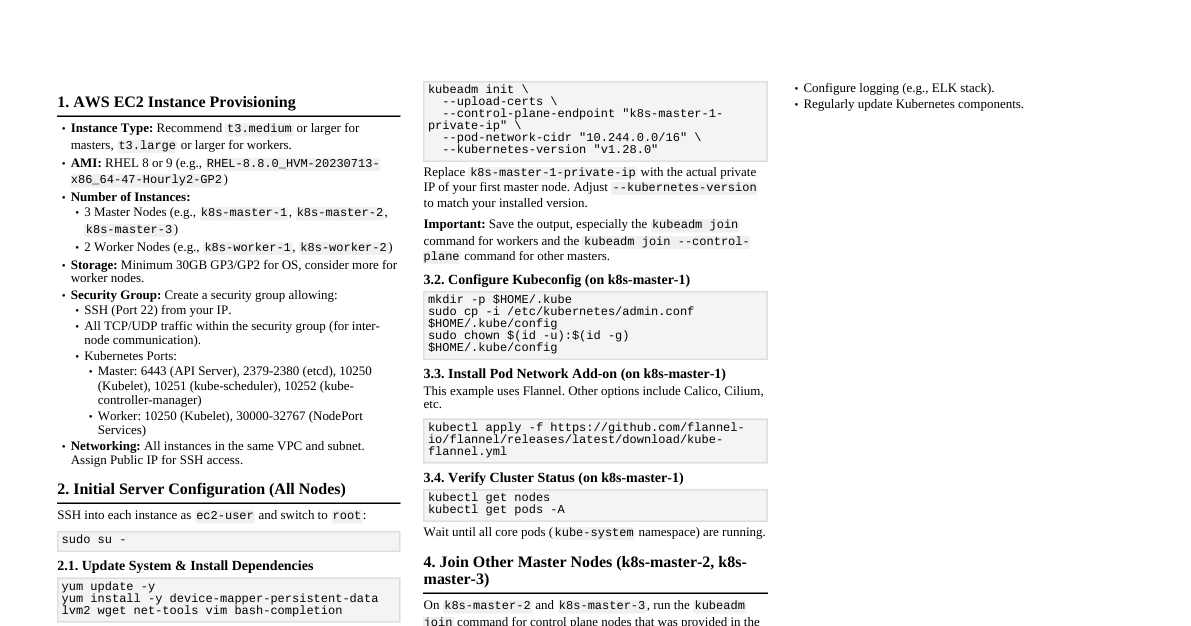
Setting up an **AWS EC2 (Elastic Compute Cloud)** instance is the professional way to run your "Genius" app. A cloud server provides a **fixed IP**, **24/7 uptime**, and **ultra-low latency** to trading exchanges like Alpaca. Follow this step-by-step navigation to set up your "Click and Play" environment. ### Create and Navigate to your Instance 1. **Sign In**: Go to the [AWS Management Console](https://aws.amazon.com/). 2. **Search for EC2**: In the top search bar, type **"EC2"** and click the first result. 3. **Launch Instance**: Click the orange **"Launch instance"** button. ### Fill in the Required Details (The "Genius" Configuration) To ensure the Rust and Python layers run smoothly, use these specific settings: - **Name**: `Genius-Trading-Server` - **Application and OS Image**: Select **Ubuntu** (Latest LTS). It is the most stable for Python/Rust development. - **Instance Type**: Select **t3.medium** (or larger). - *Note: The "Free Tier" (t2.micro) is too weak for PyTorch Transformers. You need at least 4GB of RAM.* - **Key Pair**: Click **"Create new key pair"**. Name it `genius-key`. Download the `.pem` file and keep it safe—this is your "digital key" to the server. - **Network Settings**: - Check **"Allow SSH traffic from My IP"**. - Check **"Allow HTTPS traffic from the internet"**. ### Configure Storage - **Amount**: Change 8 GiB to **30 GiB**. - **Type**: **gp3** (This is the fastest general-purpose storage for data logging). ### The "Click and Play" Setup Script (User Data) Scroll down to **"Advanced Details"** and find the **"User Data"** box at the very bottom. Paste the following script. This automatically installs Rust, Python, and all your "Genius" dependencies the moment the server turns on: ```bash #!/bin/bash sudo apt-get update -y sudo apt-get install -y python3-pip python3-dev rustc cargo pip3 install torch grpcio grpcio-tools pandas echo "Genius Environment Ready" > /home/ubuntu/status.txt ``` ### Connecting to your Server Once you click **"Launch Instance"**: 1. Wait for the "Instance State" to show **Running**. 2. Click the **Instance ID** and click the **"Connect"** button at the top. 3. Choose **"EC2 Instance Connect"** and click **Connect**. A terminal window will open in your browser. ### Loading the Genius App Inside that terminal, you will move your code onto the server. - **To upload your code**: You can use a tool like **SCP** or simply use **Git** if your code is on GitHub: `git clone https://github.com/your-repo/genius-app.git` - **To run the trial**: 1. Start the Python Brain: `python3 brain_service.py &` 2. Start the Rust Muscle: `cargo run --release` ### Why this is "Genius" for Trading By using an AWS server in the **us-east-1 (N. Virginia)** region, your bot is physically located near the major financial data centers. This reduces your **Network Latency** ($t_{\text{network}}$): $$t_{\text{home\_internet}} \approx 50\text{--}100\,\text{ms} \implies t_{\text{AWS\_EC2}} \approx 1\text{--}5\,\text{ms}$$ This $95\,\text{ms}$ advantage is the difference between catching a price move and missing it. ### Final Checklist for your 1-Hour Trial 1. **Alpaca Keys**: Have your `API_KEY` and `SECRET_KEY` ready to paste into the Rust config. 2. **Security**: Never share your `.pem` key file with anyone. 3. **Cost**: Remember to **"Stop"** or **"Terminate"** the instance after your trial to avoid ongoing AWS hourly charges. $\boxed{\text{Navigation Complete: Server Ready for Genius Deployment}}$