Microsoft PowerPoint Cheatshee
Cheatsheet Content
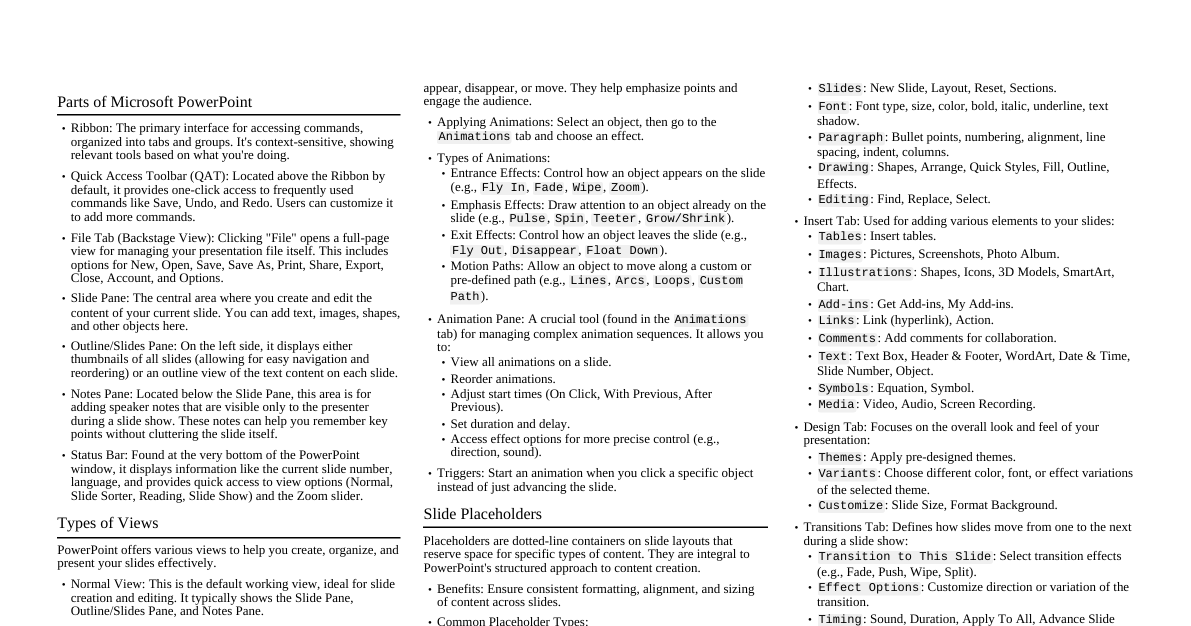
### Parts of Microsoft PowerPoint - **Ribbon:** The primary interface for accessing commands, organized into tabs and groups. It's context-sensitive, showing relevant tools based on what you're doing. - **Quick Access Toolbar (QAT):** Located above the Ribbon by default, it provides one-click access to frequently used commands like Save, Undo, and Redo. Users can customize it to add more commands. - **File Tab (Backstage View):** Clicking "File" opens a full-page view for managing your presentation file itself. This includes options for New, Open, Save, Save As, Print, Share, Export, Close, Account, and Options. - **Slide Pane:** The central area where you create and edit the content of your current slide. You can add text, images, shapes, and other objects here. - **Outline/Slides Pane:** On the left side, it displays either thumbnails of all slides (allowing for easy navigation and reordering) or an outline view of the text content on each slide. - **Notes Pane:** Located below the Slide Pane, this area is for adding speaker notes that are visible only to the presenter during a slide show. These notes can help you remember key points without cluttering the slide itself. - **Status Bar:** Found at the very bottom of the PowerPoint window, it displays information like the current slide number, language, and provides quick access to view options (Normal, Slide Sorter, Reading, Slide Show) and the Zoom slider. ### Types of Views PowerPoint offers various views to help you create, organize, and present your slides effectively. - **Normal View:** This is the default working view, ideal for slide creation and editing. It typically shows the Slide Pane, Outline/Slides Pane, and Notes Pane. - **Slide Sorter View:** Displays all slides as miniature thumbnails in a grid. This view is excellent for: - Reordering slides by dragging and dropping. - Deleting multiple slides quickly. - Applying transitions to multiple slides simultaneously. - Creating and organizing sections within your presentation. - **Reading View:** Presents your presentation in a window, with navigation controls at the bottom. It's a good alternative to Slide Show view for reviewing your presentation without going full-screen, especially on a single monitor. - **Slide Show View:** The full-screen mode used for delivering your presentation to an audience. It hides the PowerPoint interface, showing only the slides. You can advance slides, use presenter tools (like laser pointer, pen), and access speaker notes (if using Presenter View). - **Notes Page View:** Shows each slide on its own page, with the corresponding speaker notes below it. This view is primarily used for printing your notes pages for reference during a presentation. - **Outline View:** Located in the Outline/Slides Pane, this view focuses solely on the text content of your slides (titles and main bullet points). It's useful for structuring your presentation's content, checking logical flow, and making quick text edits across multiple slides. - **Master Views (Slide Master, Handout Master, Notes Master):** These advanced views allow you to make global changes to the design and layout of your presentation. - **Slide Master:** Controls the main design elements (background, fonts, colors, placeholders) for all slides and their layouts. - **Handout Master:** Defines the layout for printed handouts. - **Notes Master:** Defines the layout for printed notes pages. ### Slide Layouts Slide layouts are pre-defined arrangements of placeholders that determine how content is organized on a slide. They are based on the Slide Master and ensure consistency. - **Purpose:** Provide structure, save time, and maintain a professional appearance. - **Common Built-in Layouts:** - **Title Slide:** For the presentation's opening slide (Title, Subtitle). - **Title and Content:** Most common layout for general content (Title, single Content placeholder). - **Section Header:** To divide your presentation into logical sections. - **Two Content:** For comparing two items or showing two related pieces of content side-by-side. - **Comparison:** Similar to Two Content, but often includes a title for each content area. - **Title Only:** A slide with only a title, allowing for custom content below. - **Blank:** A completely empty slide for full design freedom. - **Content with Caption / Picture with Caption:** Designed to pair visuals with descriptive text. - **Applying Layouts:** Right-click a slide thumbnail in the Outline/Slides Pane > `Layout`, or use the `Layout` button in the `Home` tab. - **Customization:** Users can modify existing layouts or create new ones in the `Slide Master View` to fit specific presentation needs. ### Animation Effects Animations are visual or sound effects applied to individual objects (text, images, shapes, charts) on a slide, making them appear, disappear, or move. They help emphasize points and engage the audience. - **Applying Animations:** Select an object, then go to the `Animations` tab and choose an effect. - **Types of Animations:** - **Entrance Effects:** Control how an object appears on the slide (e.g., `Fly In`, `Fade`, `Wipe`, `Zoom`). - **Emphasis Effects:** Draw attention to an object already on the slide (e.g., `Pulse`, `Spin`, `Teeter`, `Grow/Shrink`). - **Exit Effects:** Control how an object leaves the slide (e.g., `Fly Out`, `Disappear`, `Float Down`). - **Motion Paths:** Allow an object to move along a custom or pre-defined path (e.g., `Lines`, `Arcs`, `Loops`, `Custom Path`). - **Animation Pane:** A crucial tool (found in the `Animations` tab) for managing complex animation sequences. It allows you to: - View all animations on a slide. - Reorder animations. - Adjust start times (On Click, With Previous, After Previous). - Set duration and delay. - Access effect options for more precise control (e.g., direction, sound). - **Triggers:** Start an animation when you click a specific object instead of just advancing the slide. ### Slide Placeholders Placeholders are dotted-line containers on slide layouts that reserve space for specific types of content. They are integral to PowerPoint's structured approach to content creation. - **Benefits:** Ensure consistent formatting, alignment, and sizing of content across slides. - **Common Placeholder Types:** - **Text Placeholders:** For titles, subtitles, and bulleted or numbered lists. Automatically apply theme fonts and styles. - **Images/Pictures Placeholders:** Click to insert pictures from your computer, online sources, or screenshots. - **Charts Placeholders:** Click to insert various chart types (column, line, pie, bar, area, scatter) to visualize data. PowerPoint integrates with Excel for data input. - **Tables Placeholders:** Click to insert a table, specifying rows and columns. Table tools appear for formatting. - **SmartArt Graphics Placeholders:** Click to insert visual representations of information, such as lists, processes, cycles, hierarchies, relationships, and matrices. - **Shapes Placeholders:** While not a dedicated placeholder type, many layouts include content placeholders where you can insert various auto-shapes (rectangles, circles, arrows, callouts, etc.) and customize their appearance. - **Videos Placeholders:** Click to insert video files from your computer or online sources (e.g., YouTube, Vimeo). Playback options are available. - **Audio Placeholders:** Click to insert sound files (e.g., music, narration) from your computer. Playback options control how the audio behaves during the slide show. - **Inserting Content:** When you click inside a placeholder, context-sensitive tools appear to help you insert and format the content. ### Applying Themes A theme is a complete design scheme that provides a unified, professional look for your presentation. It encompasses colors, fonts, and effects. - **Components of a Theme:** - **Theme Colors:** A set of 12 coordinated colors (4 for text/background, 6 for accents, 2 for hyperlinks). These colors are consistently applied to text, shapes, charts, and other elements. - **Theme Fonts:** A pair of fonts – one for headings and one for body text. This ensures typographic consistency throughout the presentation. - **Theme Effects:** A set of visual effects for shapes and SmartArt graphics, including line and fill effects. - **Applying Themes:** 1. Go to the `Design` tab on the Ribbon. 2. Browse the `Themes` gallery. Hovering over a theme shows a live preview. 3. Click to apply a theme to all slides. - **Theme Variants:** Within each theme, there are `Variants` (also on the `Design` tab) that offer different color schemes, font sets, or background styles, allowing for further customization without changing the core theme. - **Customization:** - You can modify theme colors, fonts, and effects using the `Customize` group in the `Design` tab. - Custom themes can be saved for future use across different presentations. - Changes made in `Slide Master View` (e.g., to background graphics) are also part of the theme. ### Tabs (Ribbon) The Ribbon is organized into tabs, each containing groups of related commands. - **File Tab:** Opens the Backstage view for file management (New, Open, Save, Print, Share, Export, Close, Account, Options). - **Home Tab:** Contains the most frequently used commands for slide creation and content editing: - `Clipboard`: Cut, Copy, Paste, Format Painter. - `Slides`: New Slide, Layout, Reset, Sections. - `Font`: Font type, size, color, bold, italic, underline, text shadow. - `Paragraph`: Bullet points, numbering, alignment, line spacing, indent, columns. - `Drawing`: Shapes, Arrange, Quick Styles, Fill, Outline, Effects. - `Editing`: Find, Replace, Select. - **Insert Tab:** Used for adding various elements to your slides: - `Tables`: Insert tables. - `Images`: Pictures, Screenshots, Photo Album. - `Illustrations`: Shapes, Icons, 3D Models, SmartArt, Chart. - `Add-ins`: Get Add-ins, My Add-ins. - `Links`: Link (hyperlink), Action. - `Comments`: Add comments for collaboration. - `Text`: Text Box, Header & Footer, WordArt, Date & Time, Slide Number, Object. - `Symbols`: Equation, Symbol. - `Media`: Video, Audio, Screen Recording. - **Design Tab:** Focuses on the overall look and feel of your presentation: - `Themes`: Apply pre-designed themes. - `Variants`: Choose different color, font, or effect variations of the selected theme. - `Customize`: Slide Size, Format Background. - **Transitions Tab:** Defines how slides move from one to the next during a slide show: - `Transition to This Slide`: Select transition effects (e.g., Fade, Push, Wipe, Split). - `Effect Options`: Customize direction or variation of the transition. - `Timing`: Sound, Duration, Apply To All, Advance Slide (On Mouse Click, After). - **Animations Tab:** Controls the movement of individual objects on a slide: - `Animation`: Apply Entrance, Emphasis, Exit, or Motion Path effects. - `Advanced Animation`: Add Animation, Animation Pane, Trigger, Animation Painter. - `Timing`: Start, Duration, Delay, Reorder Animation. - **Slide Show Tab:** Manages the setup and delivery of your presentation: - `Start Slide Show`: From Beginning, From Current Slide, Present Online, Custom Slide Show. - `Set Up`: Set Up Slide Show, Hide Slide, Rehearse Timings, Record Slide Show. - `Monitors`: Resolution, Use Presenter View. - **Review Tab:** Tools for proofing, accessibility, and collaboration: - `Proofing`: Spelling, Thesaurus, Check Accessibility. - `Insights`: Smart Lookup. - `Language`: Translate, Language. - `Comments`: Show Comments, New Comment, Delete. - `Compare`: Compare presentations. - `Ink`: Start Inking. - **View Tab:** Changes how you see your presentation on screen: - `Presentation Views`: Normal, Outline View, Slide Sorter, Notes Page, Reading View. - `Master Views`: Slide Master, Handout Master, Notes Master. - `Show`: Ruler, Gridlines, Guides. - `Zoom`: Zoom in/out to a specific percentage. - `Color/Grayscale`: View in color, grayscale, or pure black and white. - `Window`: New Window, Arrange All, Cascade, Move Split, Switch Windows. - `Macros`: View and manage macros. - **Help Tab:** Provides access to help resources, training, feedback, and contact support. - **Contextual Tabs:** Appear only when a specific object is selected (e.g., `Picture Format` tab when an image is selected, `Table Design` and `Layout` tabs when a table is selected). These tabs offer tools specific to the selected object.